Guides
Day-to-day tasks in Settings → Account. Screenshots use a demo workspace; your labels and dates will differ.
API tokens {#api-tokens}
Create a token
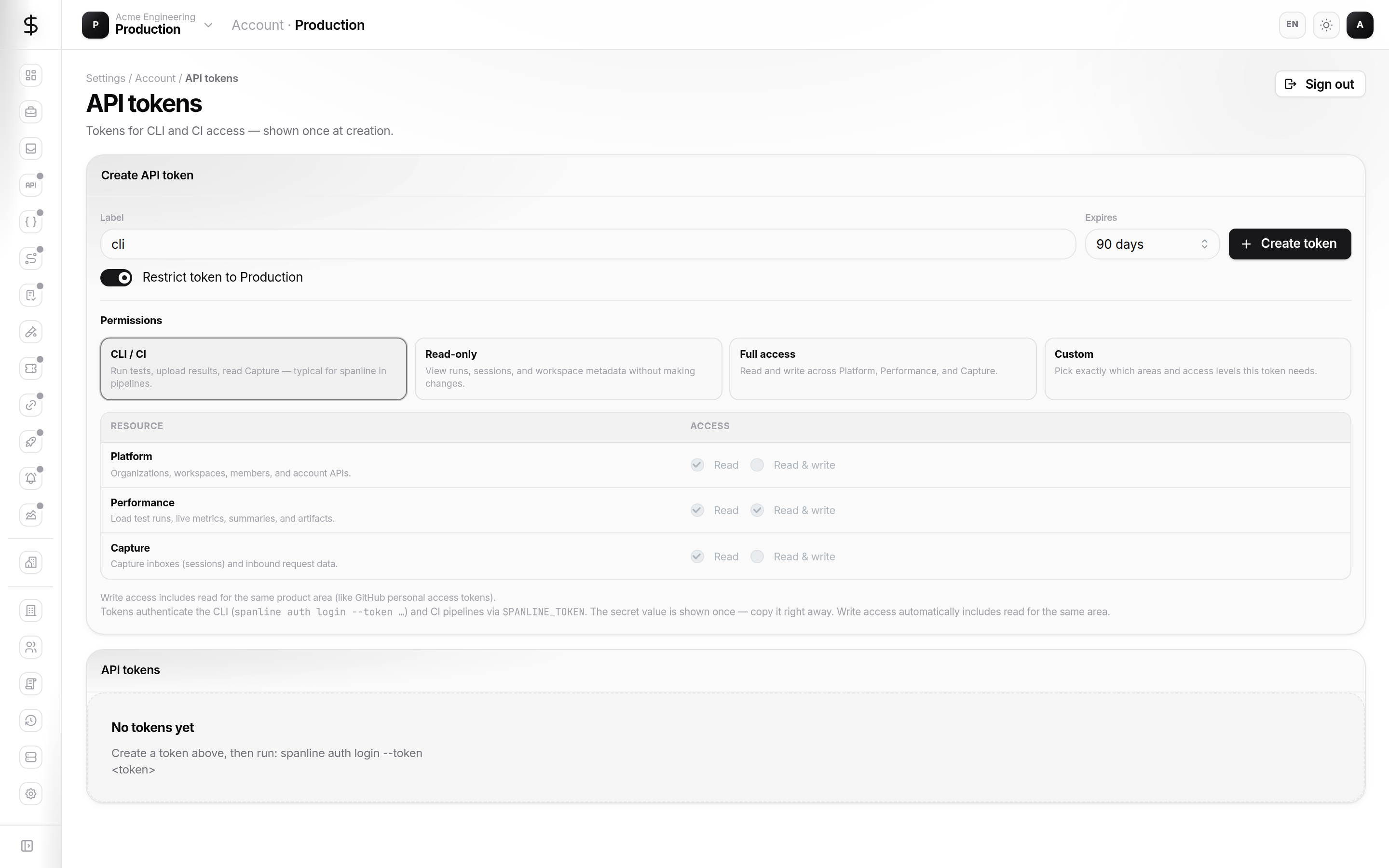
- Open Account → API tokens.
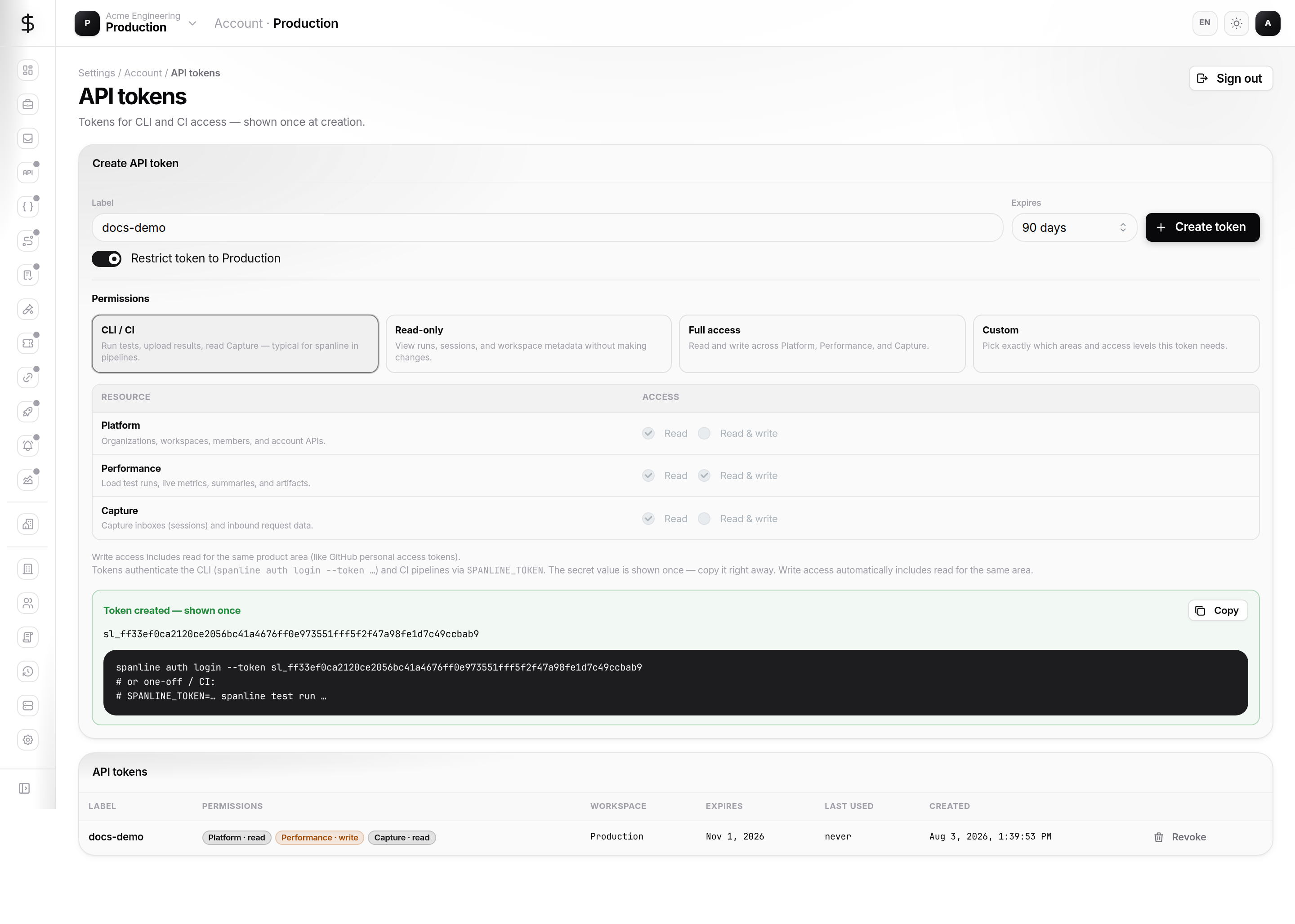
- Label — name the runner (
laptop,ci-staging,ci-prod). - Expires — match your rotation policy.
- Restrict token to … — on for single-workspace CI; off for cross-workspace tools.
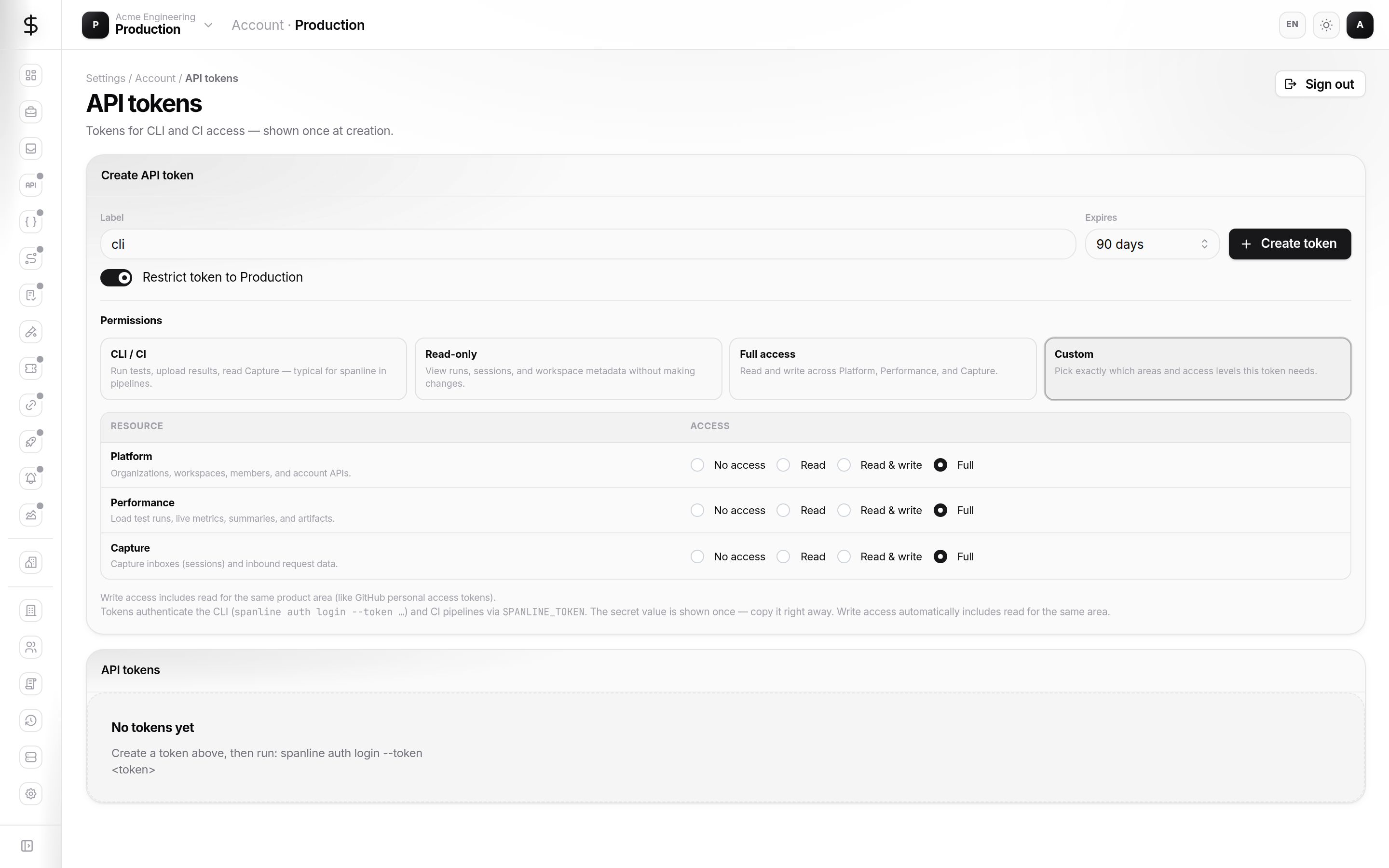
- Permissions — start from a preset, then switch to Custom if you need least privilege.
- Create token → copy
sl_…immediately.
Choose the right preset
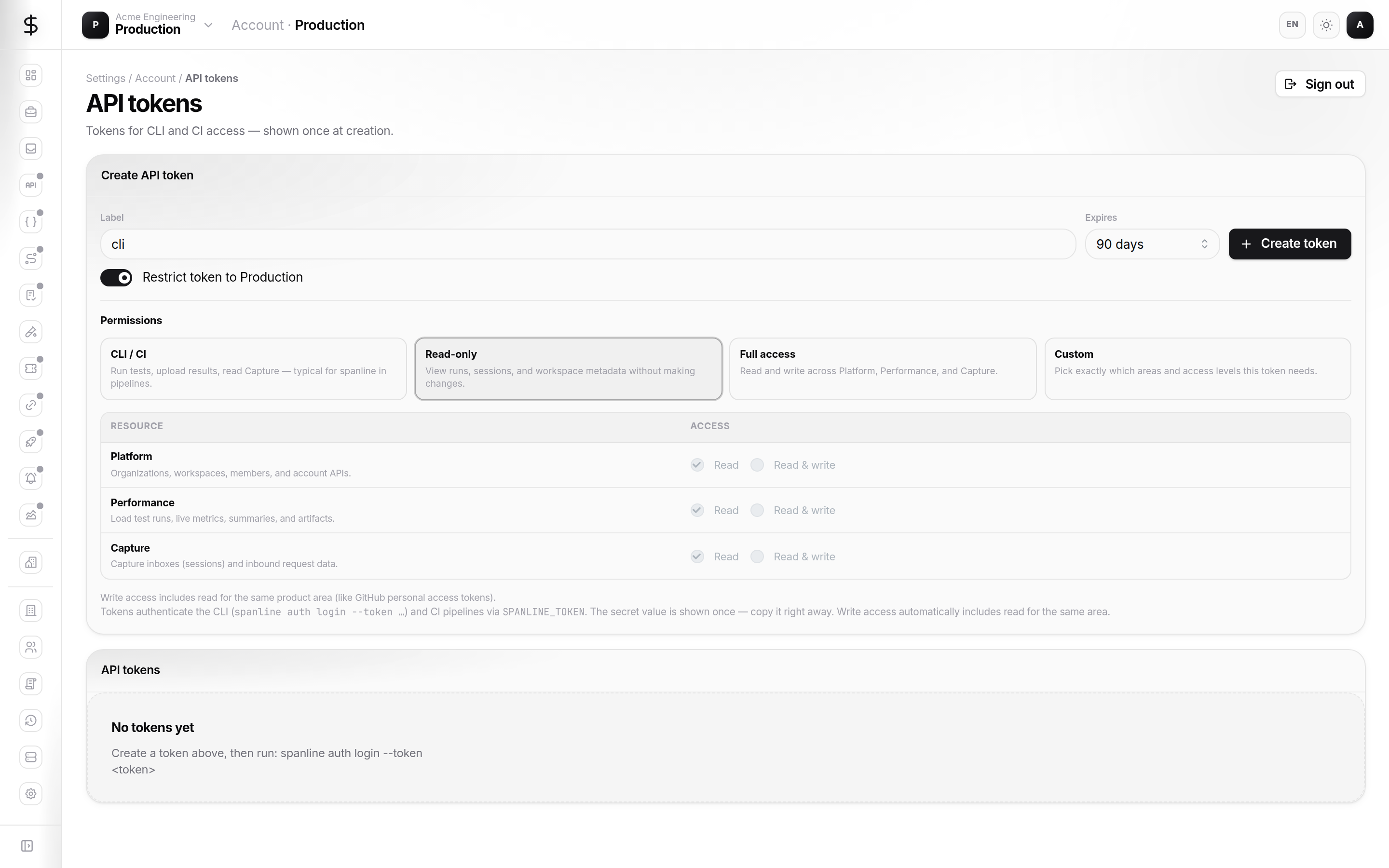
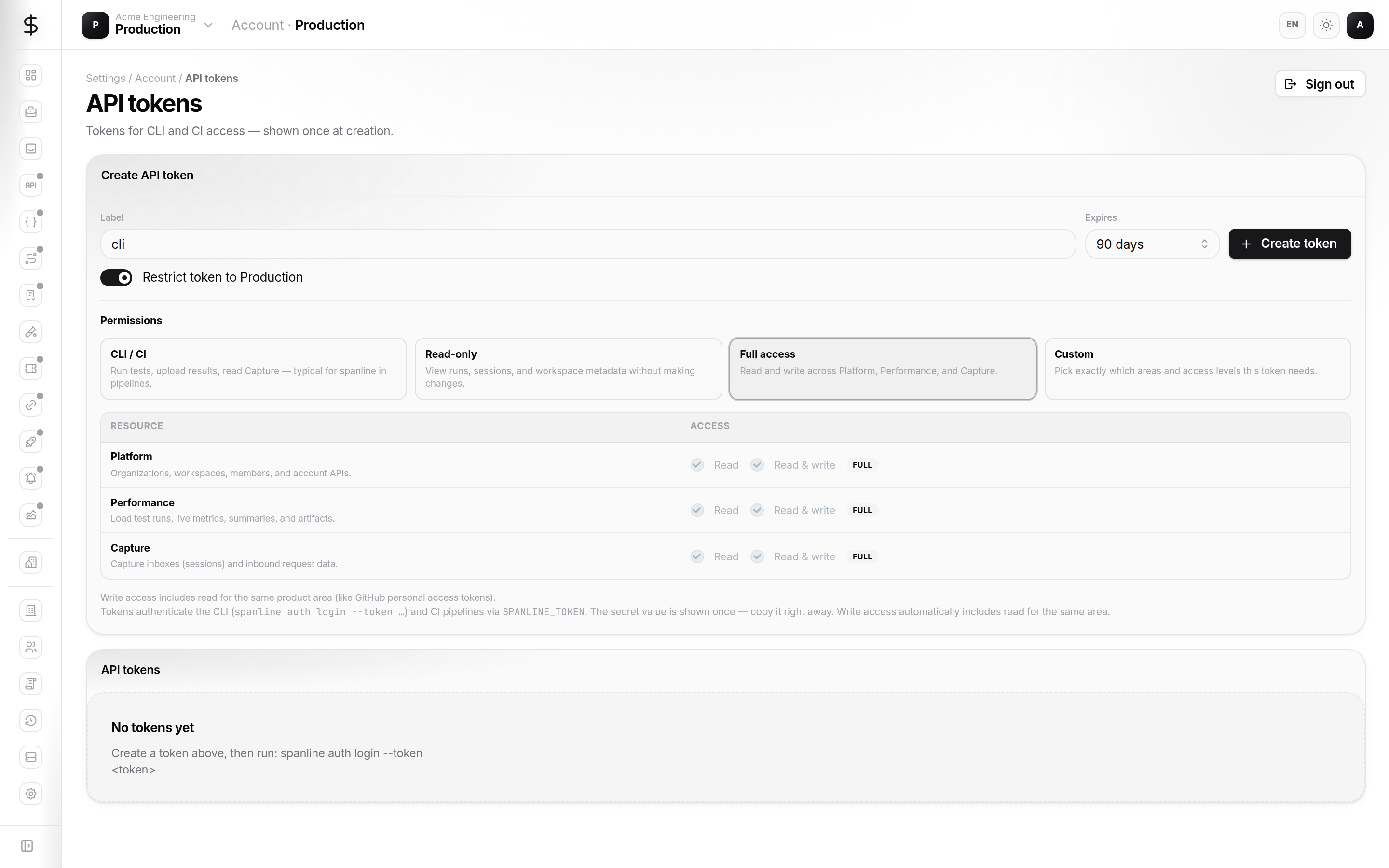
| If you need to… | Start with… |
|---|---|
Run spanline test run and upload results |
CLI / CI |
| Build internal dashboards / read-only tooling | Read-only |
| Admin automation across all APIs you can access | Full access (use sparingly) |
| CI that only reads Capture inboxes | Custom → Capture read only |
Custom permissions
Select Custom, then for each row set No access, Read, Read & write, or Full.
After creation
The reveal panel shows the token and example commands. Store the secret in a password manager or CI secret store.
Manage existing tokens
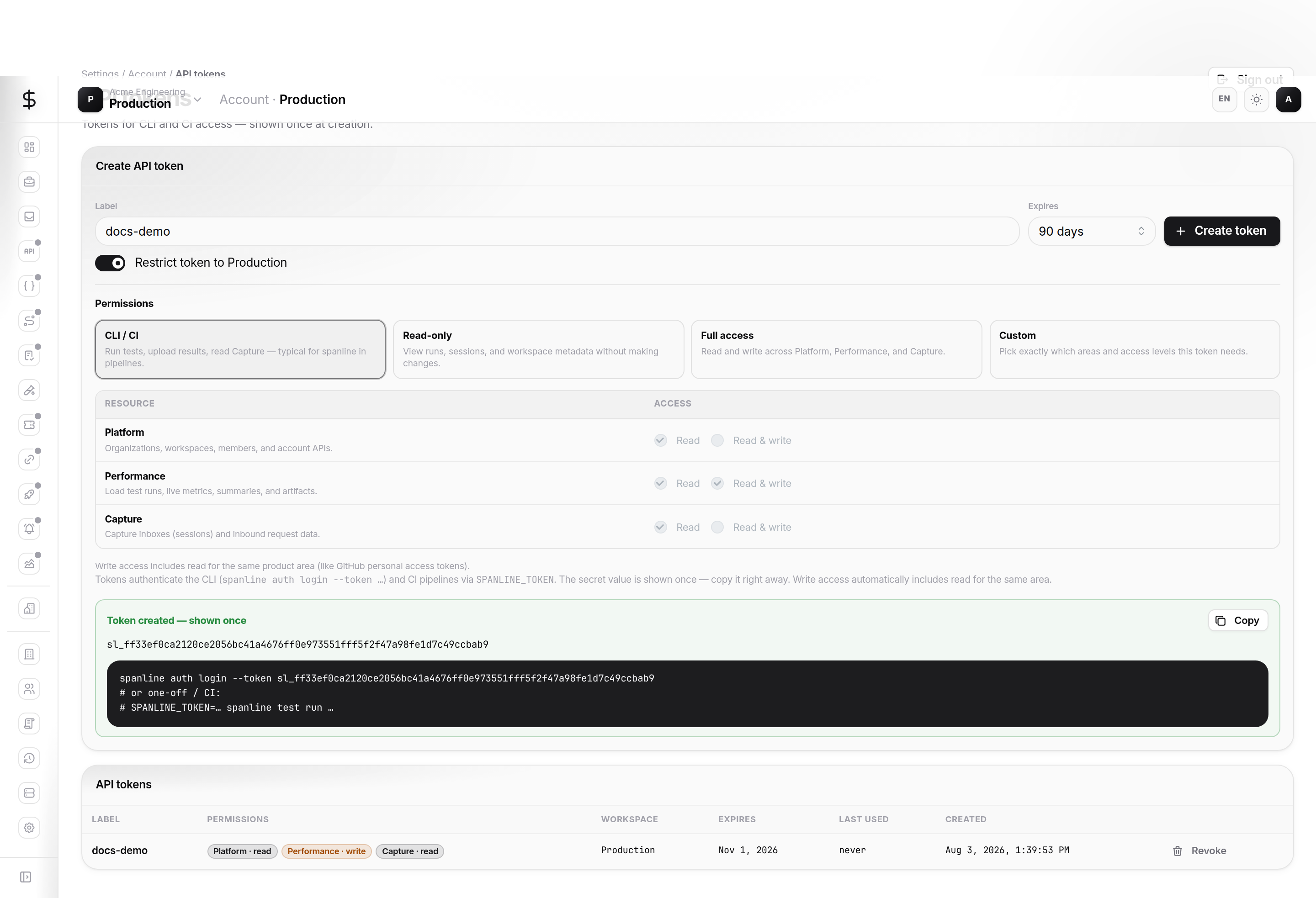
The list shows Permissions (badges), Workspace restriction, Expires, and Last used.
Wire the CLI
spanline auth login --token sl_…
spanline auth workspace use <workspace>
For CI, prefer SPANLINE_TOKEN (and SPANLINE_WORKSPACE when you have multiple workspaces). See Performance → Run tests.
Sessions
Browser sessions represent signed-in browsers.
- Open Account → Sessions.
- Review IP, user agent, and last seen.
- Revoke sessions you do not recognize.
Revoking your current session signs you out. Other devices keep working until their sessions expire or you revoke them.
Security (password & MFA)
- Open Account → Security.
- Password — change the password used for email sign-in; org policy may enforce length and complexity.
- Two-factor authentication — enroll an authenticator app when prompted or when your org requires MFA.
If an organization mandates MFA, you must enroll before using the rest of the workspace.
Preferences
Account → Preferences controls your appearance, locale, and notifications. These override system defaults and do not change workspace or organization settings.
Related
- Concepts — scopes and workspace pin
- Access & safety — rotation and hygiene
- FAQ