Internal draft
Customer self-host
Activate and maintain the deployment license for this install. Spanline issues the seat on Cloud; you bind a signed key to your ServerId.
If you only use Spanline Cloud (no own server), see Cloud organization license instead.
Before you start
- Customer server image (default tags — not the Cloud
-tags saascontrol-plane image). - Stable machine identity mounted where the server expects it (typically
/etc/machine-id). - A way to reach Spanline to exchange ServerId ↔ signed install key (or a key already signed for your ServerId).
- Prefer PostgreSQL + Redis for production; SQLite + in-memory is fine for a smoke install.
First-run setup (every step)
Open the server URL. You land on Set up Spanline. Nothing is written until Finish setup. On self-host with enforce on, the License step is required — you cannot skip it.
Step 1 — Welcome
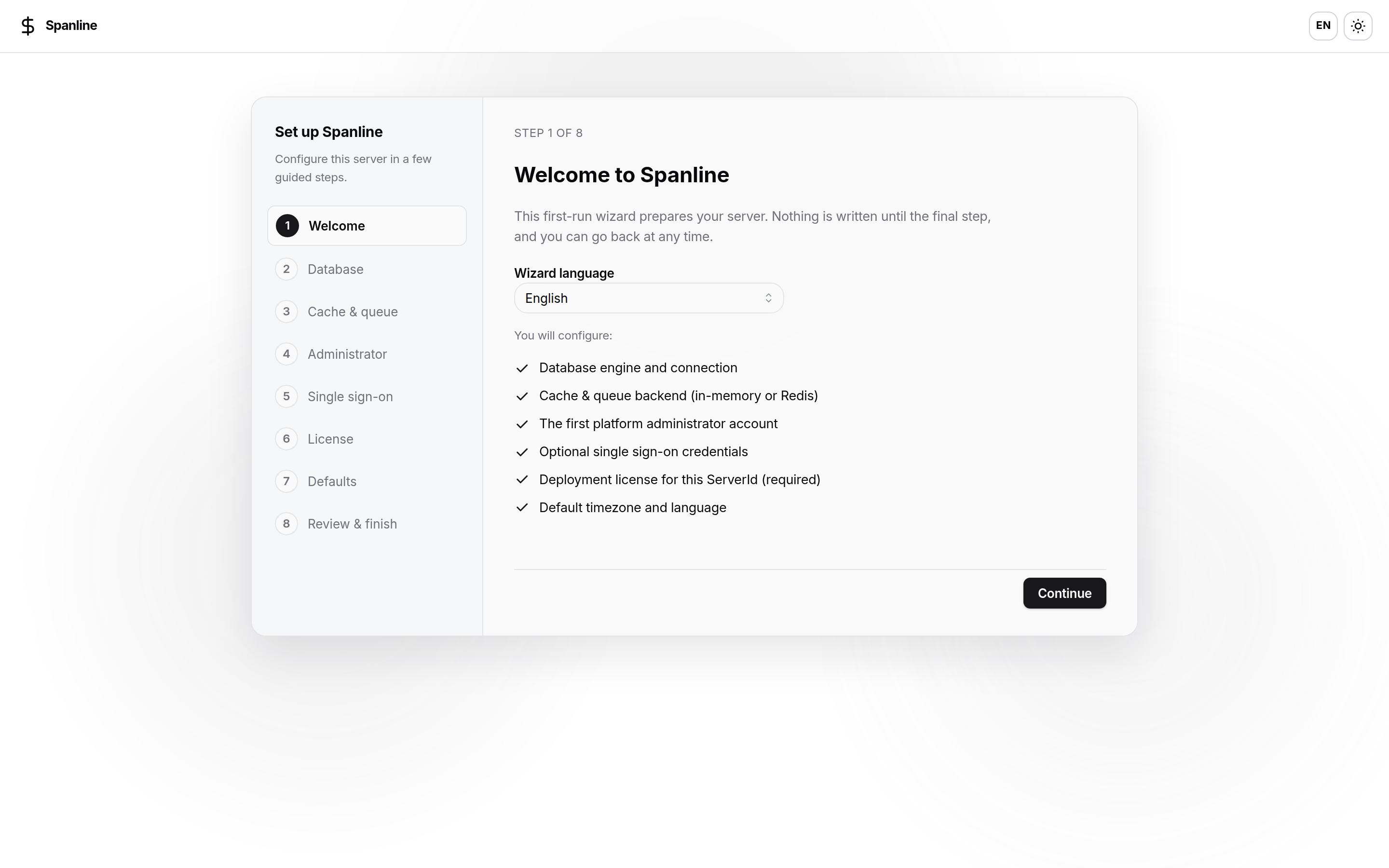
| Control | What to do |
|---|---|
| Wizard language | EN or VI for the setup UI |
| Checklist | Confirms you will set database, cache, admin, optional SSO, deployment license, defaults |
Click Continue.
Step 2 — Database
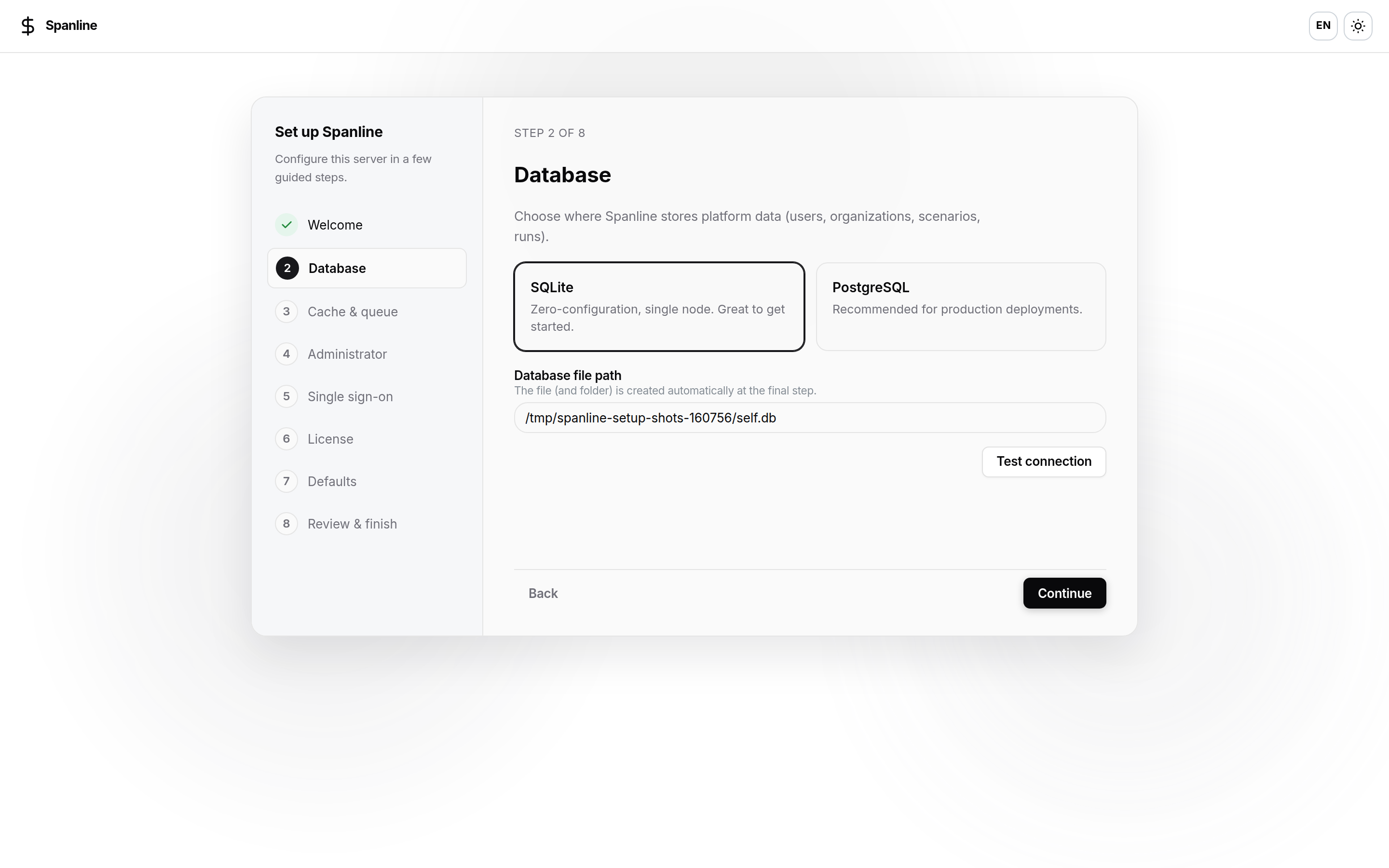
| Choice | Fields | Notes |
|---|---|---|
| SQLite | Database file path | File/folder created at finish; single node |
| PostgreSQL | Host, port, database, SSL mode, username, password | Use Test connection before continuing |
Step 3 — Cache & queue
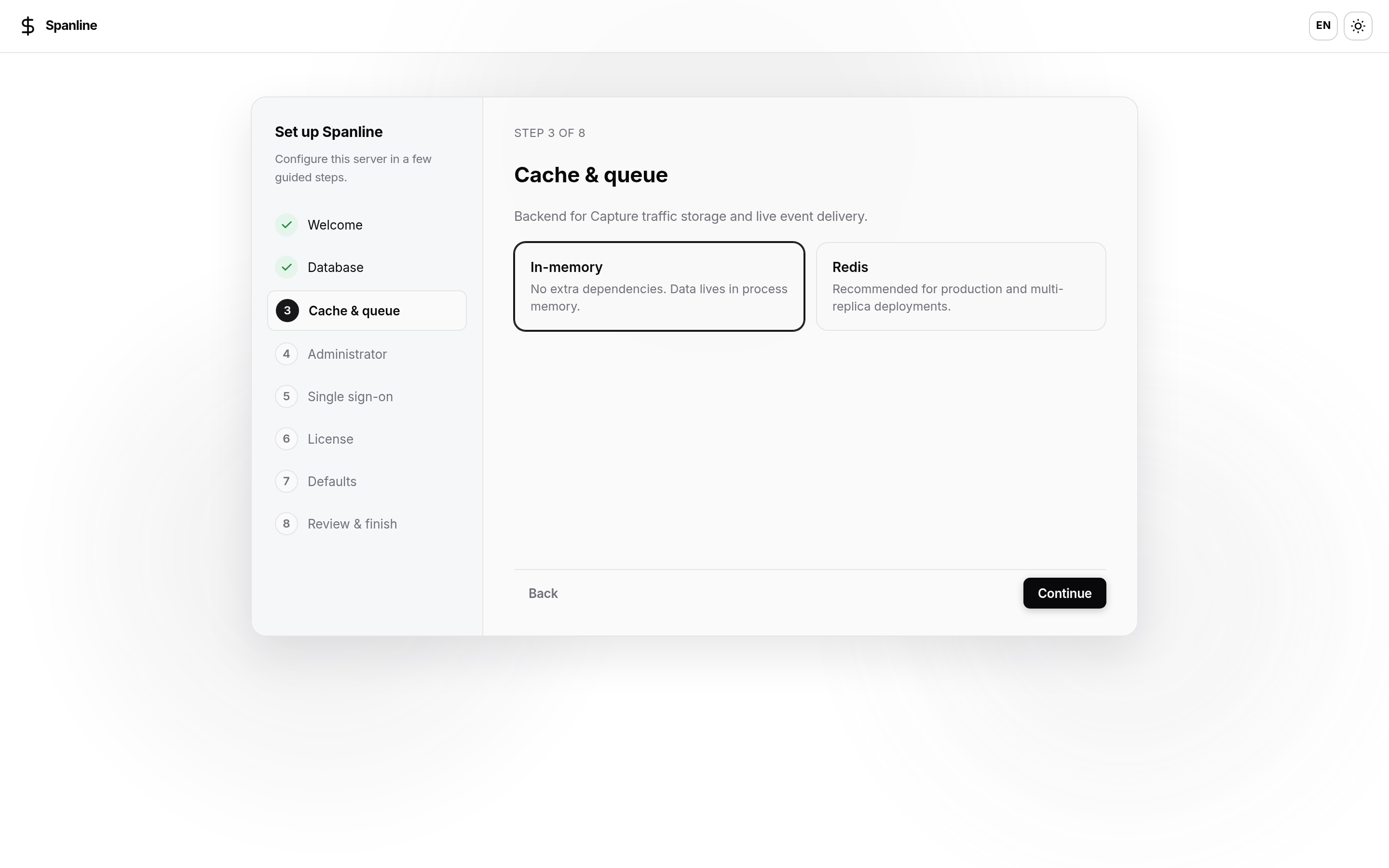
| Choice | Fields | Notes |
|---|---|---|
| In-memory | — | No extra deps; process-local only |
| Redis | Redis DSN (e.g. redis://…) |
Use Test connection; preferred for production / multi-replica |
Step 4 — Administrator
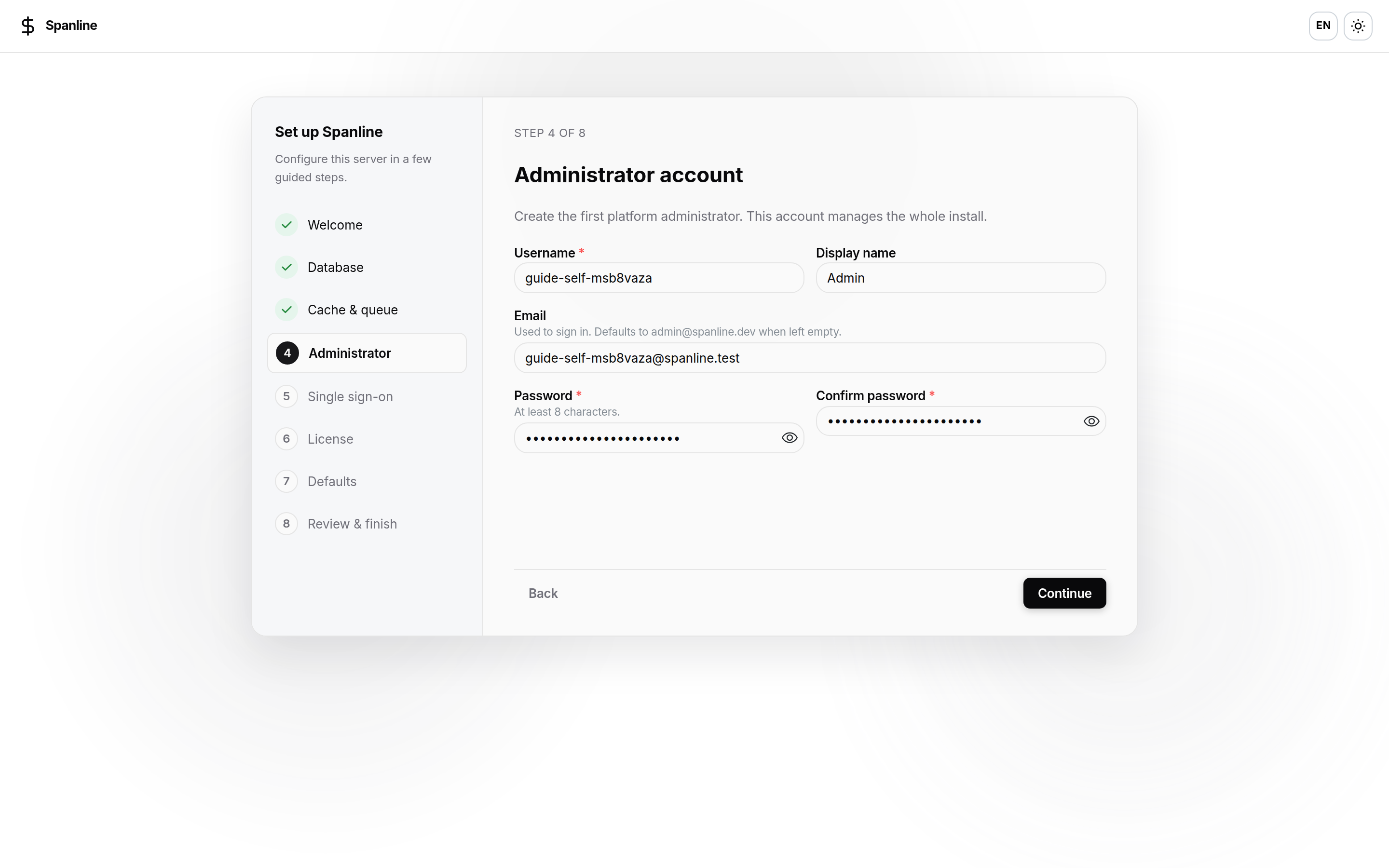
| Field | Notes |
|---|---|
| Username | Required |
| Display name | Optional |
Sign-in identity; defaults to admin@spanline.dev if empty |
|
| Password / Confirm | At least 8 characters; must match |
This account is a platform administrator on this install — not a Spanline Cloud system_admin.
Step 5 — Single sign-on (optional)
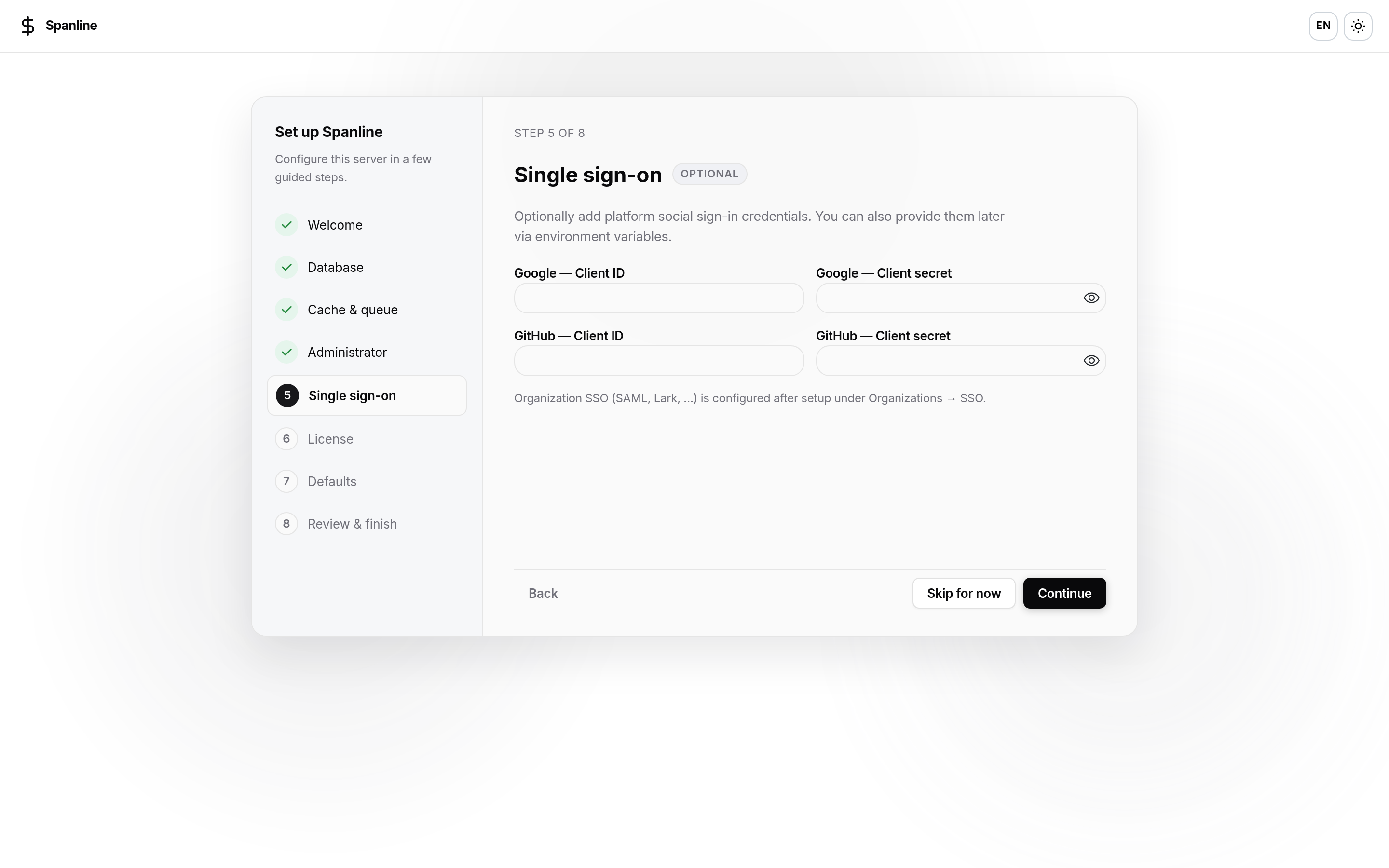
| Field | Notes |
|---|---|
| Google / GitHub Client ID + Client secret | Optional; can also come from env later |
| Note in UI | Organization SSO (SAML, etc.) is configured later under Organizations → SSO — and org federation is a SaaS story; self-host uses platform social on the login screen |
Use Skip for now if you are not ready.
Step 6 — License (required)
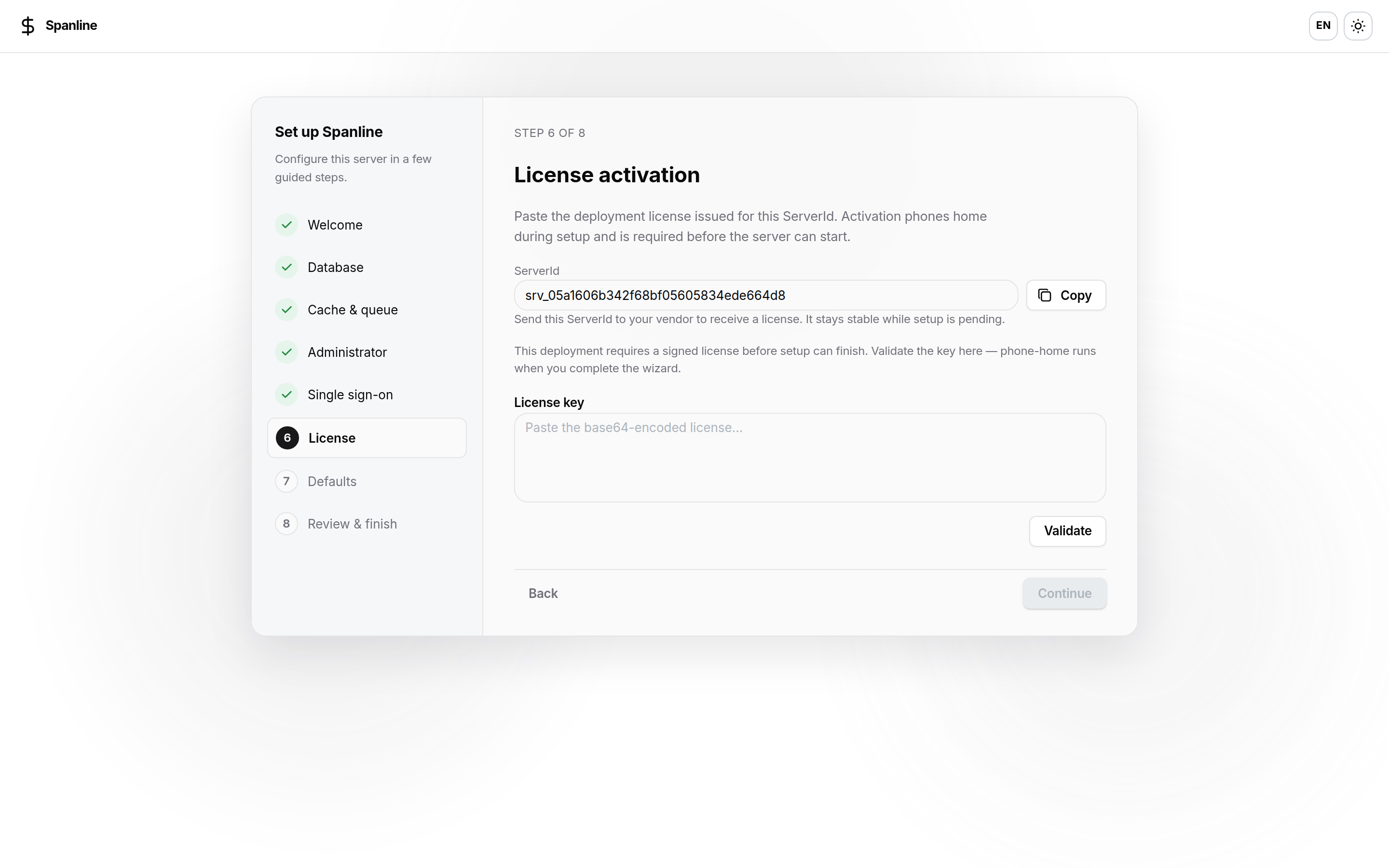
- Copy the ServerId (
srv_…). - Send it to Spanline so they can sign an install key for that ServerId.
- Paste the base64 install key.
- Click Validate (local check). Phone-home runs when you finish the wizard.
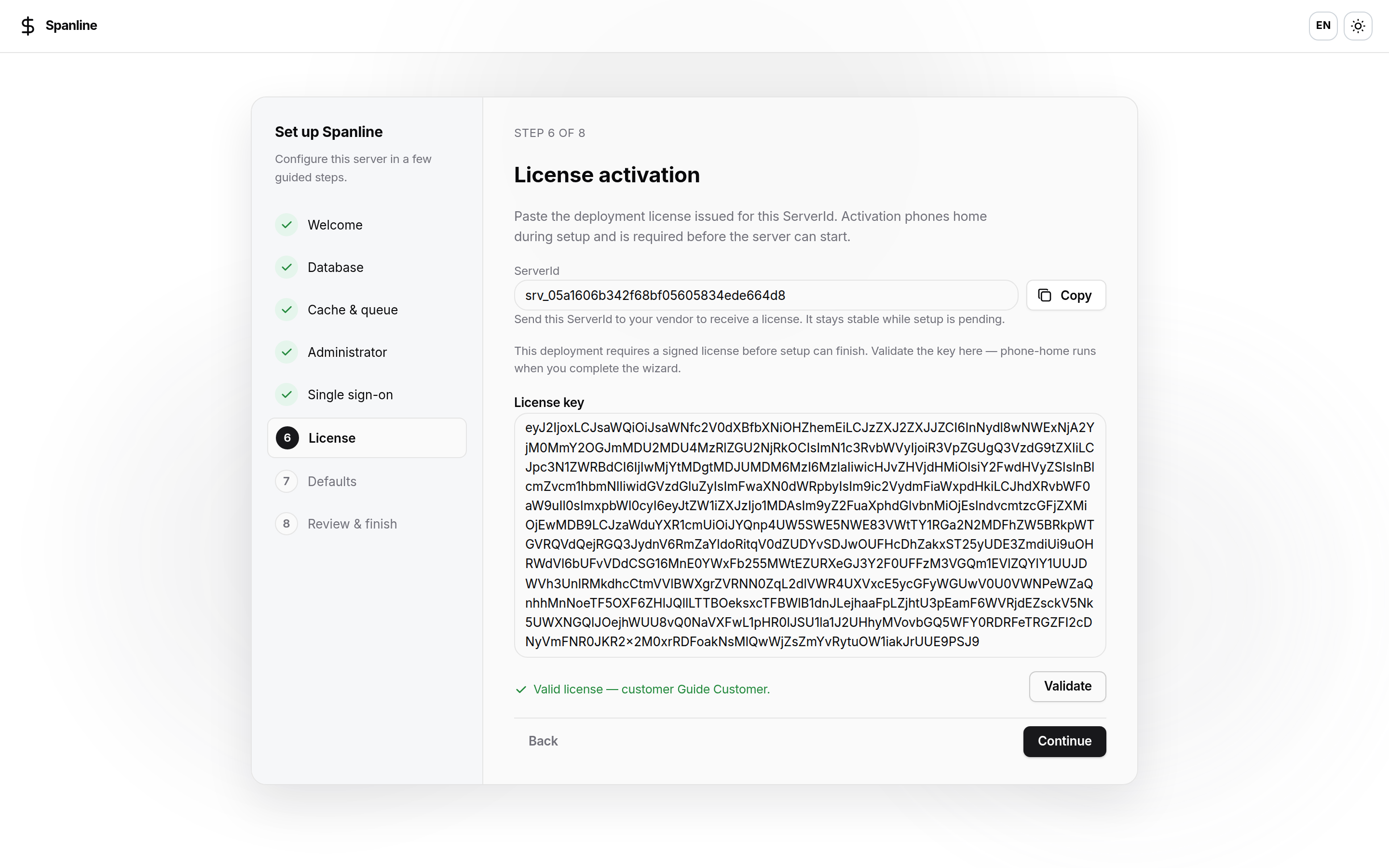
You cannot finish setup without a valid key when enforce is on.
Step 7 — Defaults
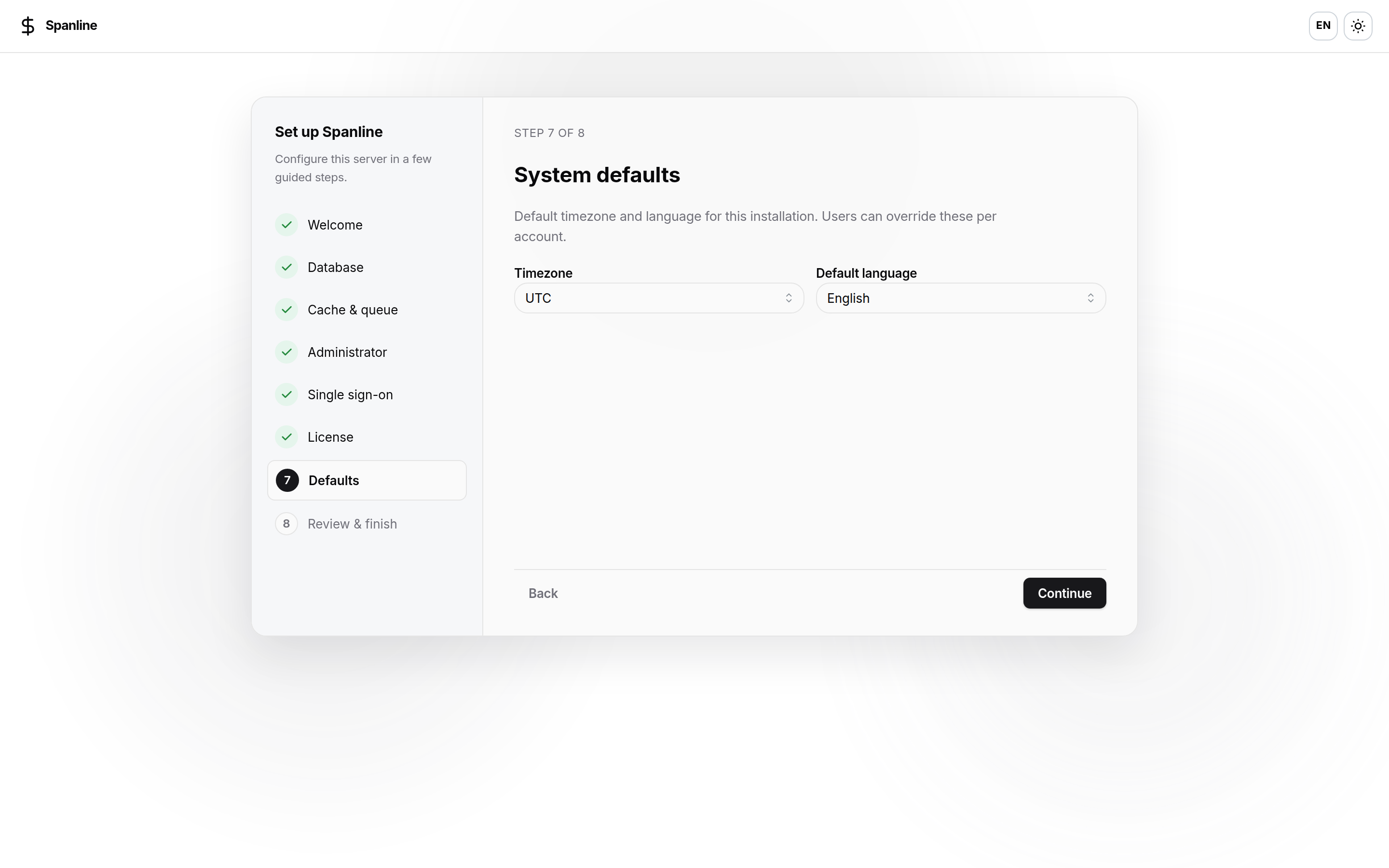
| Field | Notes |
|---|---|
| Timezone | System default |
| Default language | EN / VI for the install |
Step 8 — Review & finish
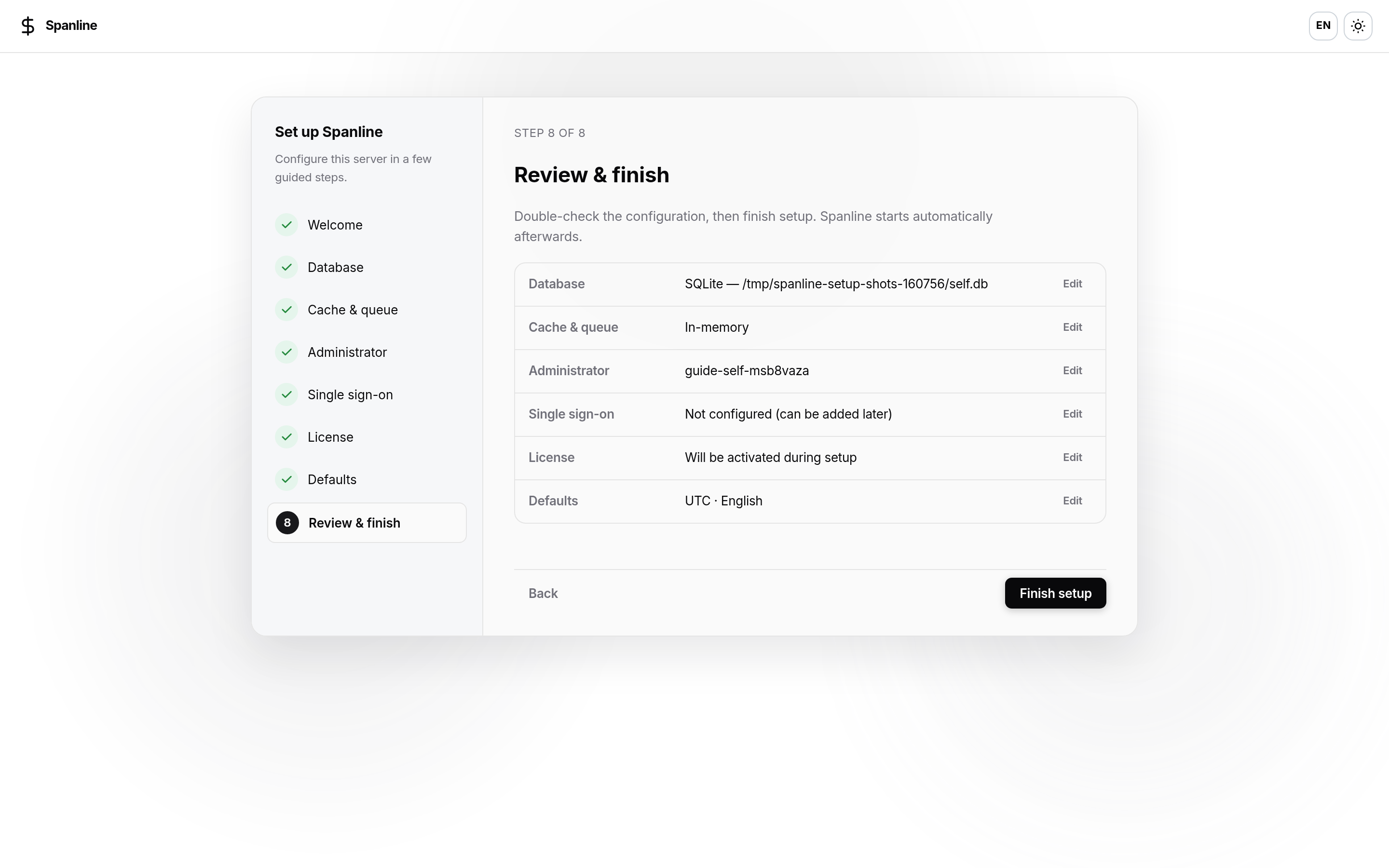
- Check database, cache, admin, SSO, license, defaults.
- Click Finish setup. Spanline creates the store, activates the license (phone-home), and leaves setup mode.
- Sign in with the administrator email/password you set.
Day-to-day: System → License
After setup, use Platform → System → License (/system/license) on this machine.
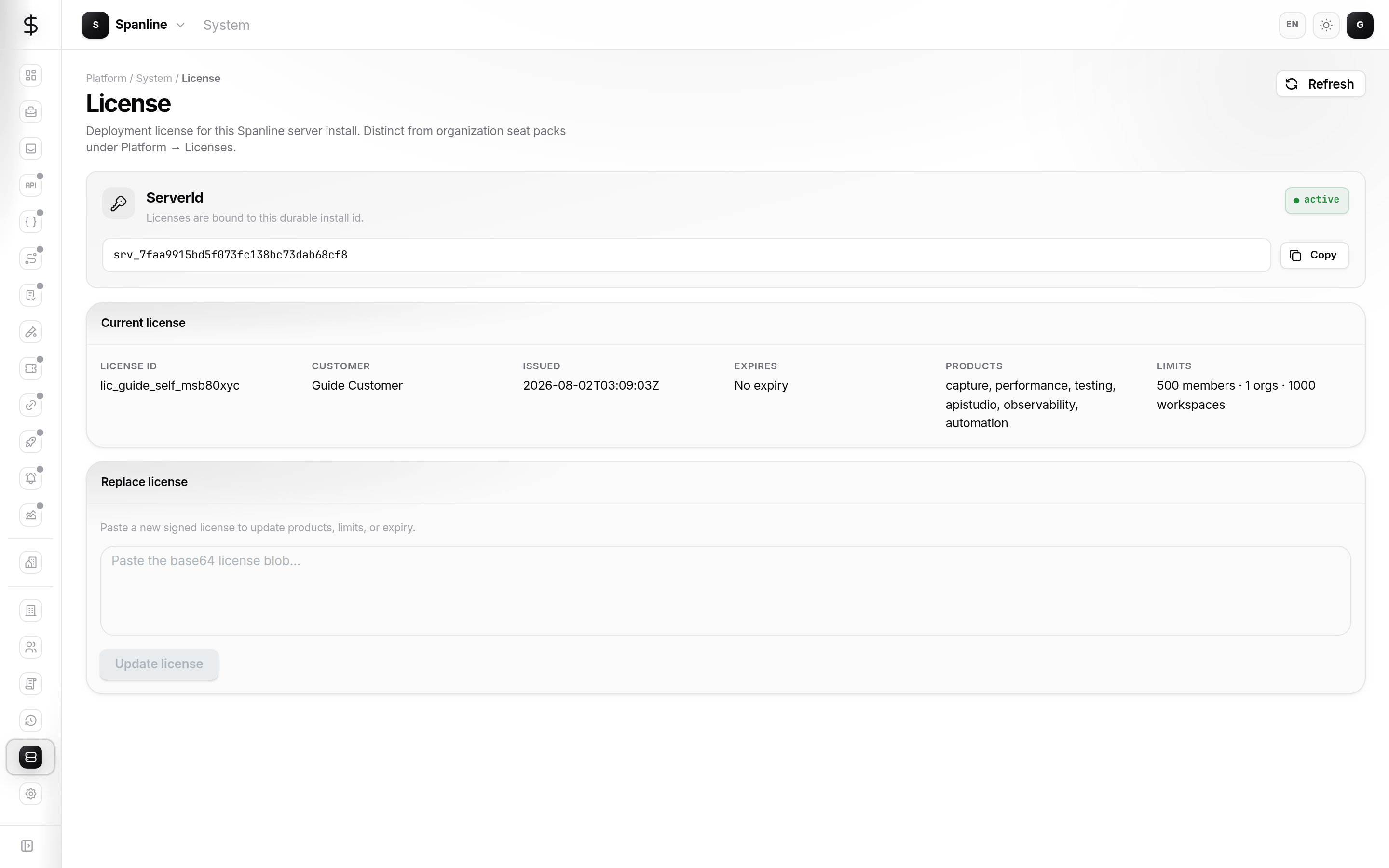
| Block | Use it to… |
|---|---|
| ServerId | Copy the durable install id for a new signed key |
| Current license | Confirm customer label, products, limits, expiry |
| Replace license | Paste a new signed blob (renewal, edition change, re-bind) |
Activate / re-activate gate (/license/active)
After sign-in, if this machine is not entitled (first bind, expiry, revoke, or machine move), Spanline blocks the product. Who you are decides which screen you see:
| Role on this install | Screen |
|---|---|
Platform system_admin |
Activate license — ServerId, paste signed key, Activate |
| Everyone else | License unavailable — notice to contact the install admin (no paste field) |
Admin — Activate license
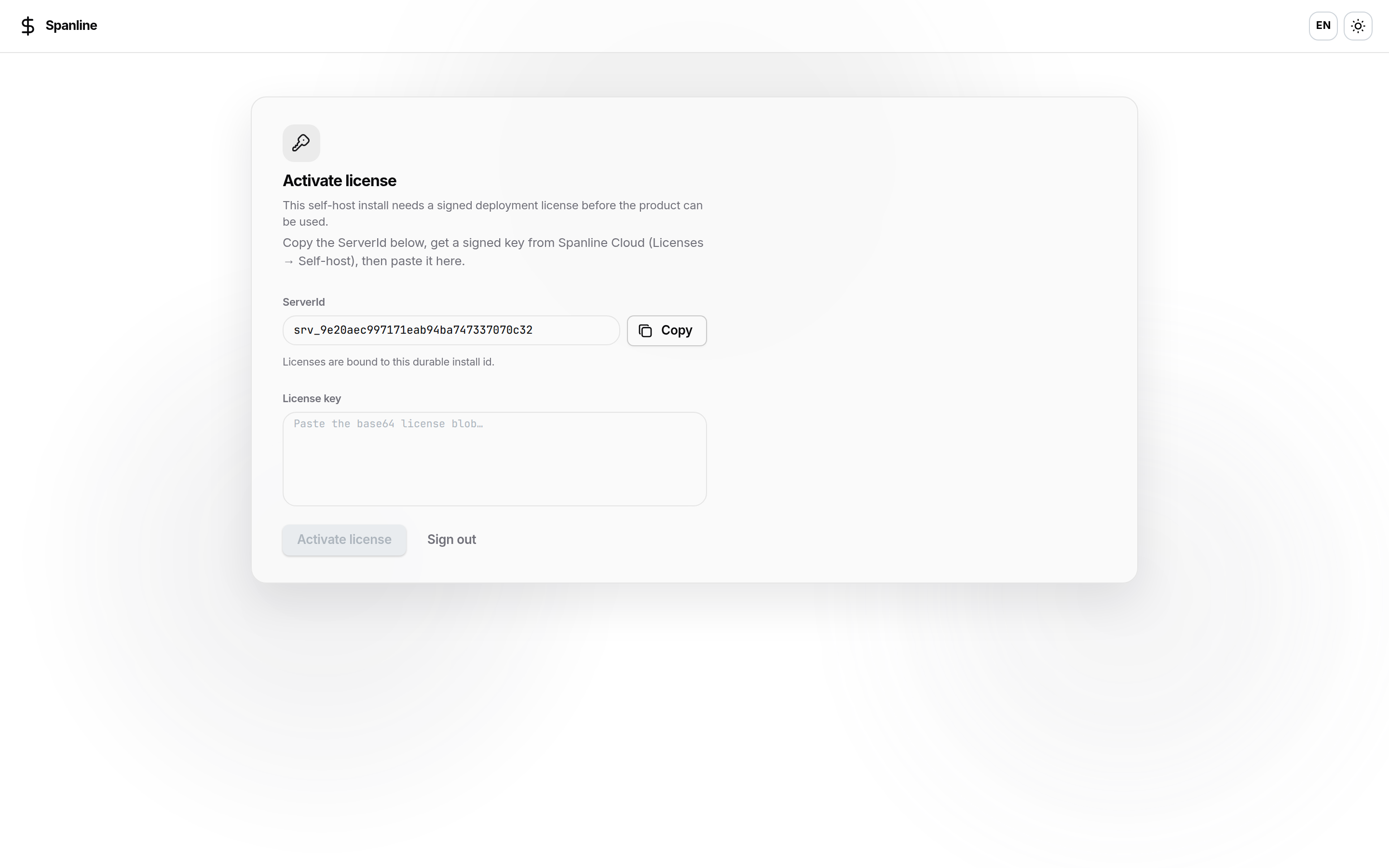
| Control | Action |
|---|---|
| ServerId | Copy and send to Spanline / your operator |
| License key | Paste the new signed blob |
| Activate license | Verifies and phones home |
| Sign out | Leave without activating |
Member — License unavailable
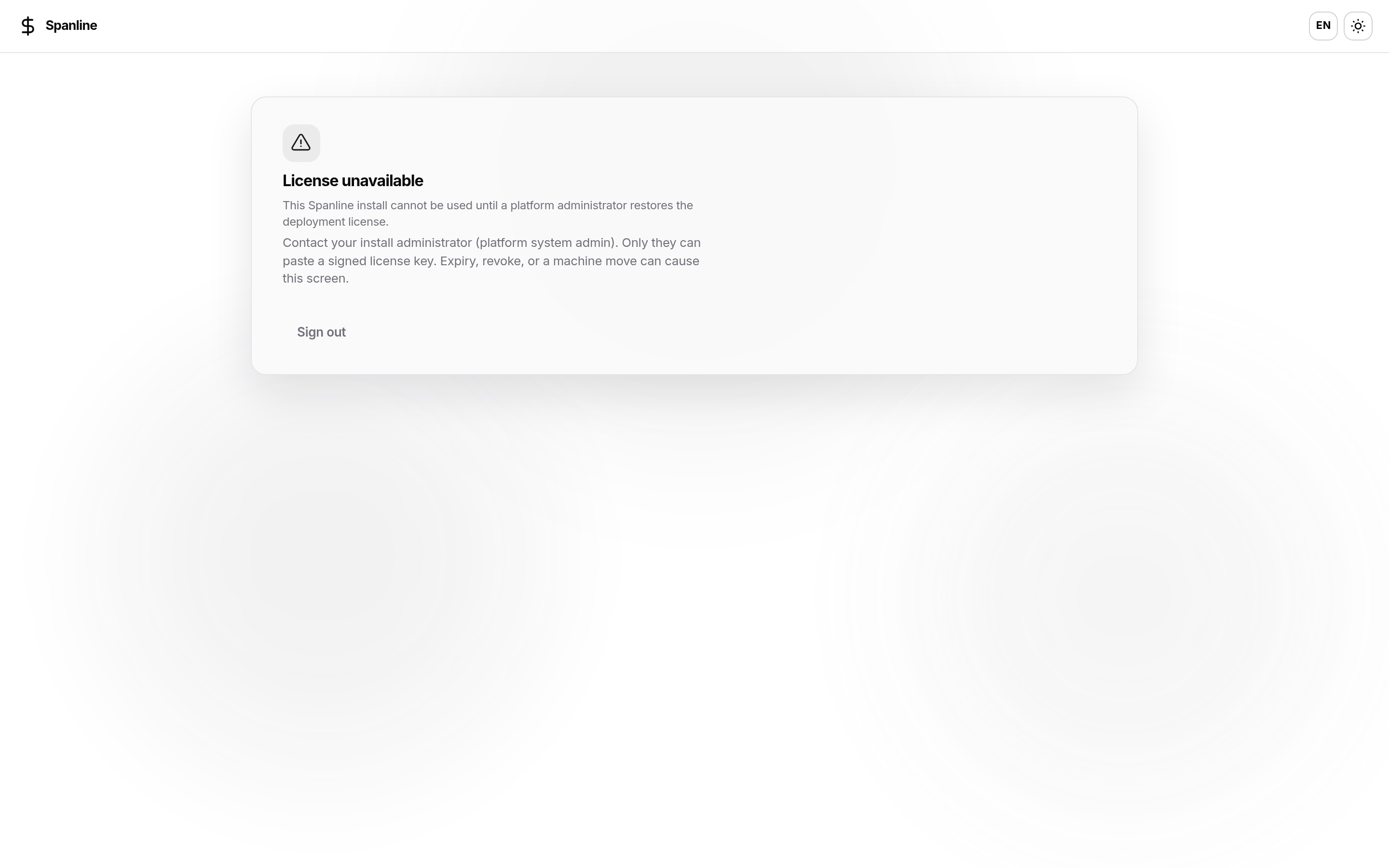
Typical causes
- Cloned VM / new disk → new ServerId (old blob no longer binds)
- Seat revoked on Cloud
- Machine released on Cloud and not re-signed
- Expired seat
Ask Spanline to release the old machine if needed and sign a key for the current ServerId; a system_admin pastes it on the activate gate. See FAQ.
What you will not see on this install
- A console to issue seats for other customers
- Cloud-only operator tools for managing every tenant’s seats
Related (same pack)
| Surface | When |
|---|---|
| Account → Installs (on Spanline Cloud) | Your Cloud account was issued a self-host seat — see installs / release machines |
| Organizations → License | Commercial Cloud org grants only — Cloud organization license. Does not activate this server. |
Next: Cloud organization license · FAQ