Reports & sharing
Saved evidence windows, bundle rollups across collections, dedicated snapshot pages, PDF export, workspace embed, and password-gated public links.
For Matrix vs Reports vs Trends, see Concepts → which view?. For day-to-day flows that touch Reports briefly, see Guides.
When to use Reports
| Need | Use |
|---|---|
Run-level proof for one collection over a calendar range (jobs did not share one collection-run batch) |
Collection window — one collection |
| Rollup across several collections (for example many APIs in one product project) | Bundle — multi-collection |
| Persist a point-in-time snapshot for audits or release notes | Save snapshot → Saved tab |
| Share a frozen snapshot outside the workspace (stakeholders, status page, wiki) | Public link + password unlock → 24h embed |
| Embed inside Spanline for signed-in teammates | Workspace embed (report id path) |
Matrix remains the right tool when you executed spanline test collection-run once and need per-job evidence for that single batch id.
Open Reports
- Sign in at https://app.spanline.dev.
- Open Performance → Reports (
/performance/reports). - Use the tabs:
- Collection window — build or export a live window (not persisted until you save).
- Saved — stored snapshots (title, template, scope, author, Open).
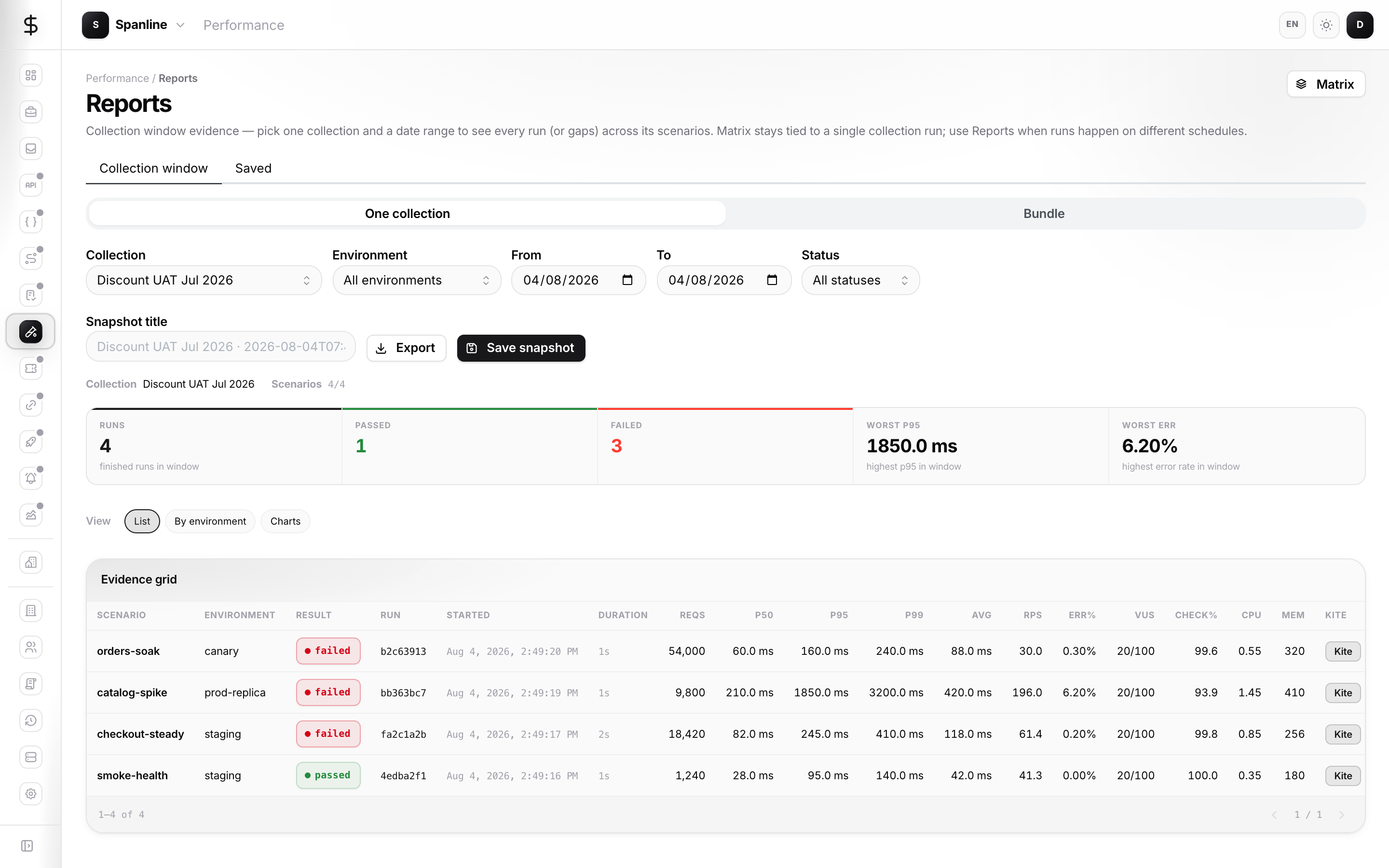
One collection vs Bundle
At the top of Collection window, choose the scope:
| Mode | UI label | What it does |
|---|---|---|
| Single | One collection | Same as classic collection window — one collection + date range |
| Bundle | Bundle | Select up to 20 collections (often filtered by Project) and see a rollup KPI plus accordion sections per collection |
One collection workflow
- Stay on One collection (or
scope=singlein the URL). - Pick a collection.
- Set From / To (calendar days in your workspace data).
- Optionally filter Status (
*= all finished states). - Review KPIs (runs, pass/fail, worst p95 / error rate, gaps).
- Scan the evidence grid — each row is a run; gaps list scenarios with no run in the window.
- Export downloads CSV, or Save snapshot stores JSON for the Saved tab.
Typical case: smoke jobs ran at 08:00 and 09:00 as separate spanline test run invocations — Matrix for a non-existent batch stays empty; Reports with dates fills the window.
Bundle workflow (multi-collection)
Use Bundle when one product surface spans multiple collections (for example several HTTP APIs each modeled as its own collection).
- Switch to Bundle.
- Filter by Project when collections are linked to a project (toolbar Project filter).
- In Collections, multi-select the collections to include (max 20).
- Set From / To and optional Status and Environment — environment filters runs in the window (scenario default env or run env).
- Review the rollup KPI strip at the top (collections count, scenarios, runs, worst latency/error).
- Open accordion sections per collection name — each section is a mini collection-window grid (scenarios, gaps, evidence links). Large interactive bundles open the first section by default; print/embed keep all sections expanded.
- Save snapshot stores a
collection_setreport; the Saved tab opens the dedicated viewer page for that snapshot.
Bundle presets (workspace server): after selecting collections, name the preset and use Save preset / Update preset / Save as new — stored per workspace (not browser-only). Load preset applies collections, optional project, and optional environment filter. Deleting a preset asks for confirmation; saved snapshots are unaffected. Deep link example:
https://app.spanline.dev/performance/reports?scope=bundle&projectSlug=discount&bundlePreset={presetId}
Org Groups are not used for report bundles — use presets instead. Project and Environment filters are optional narrowing aids, not required.
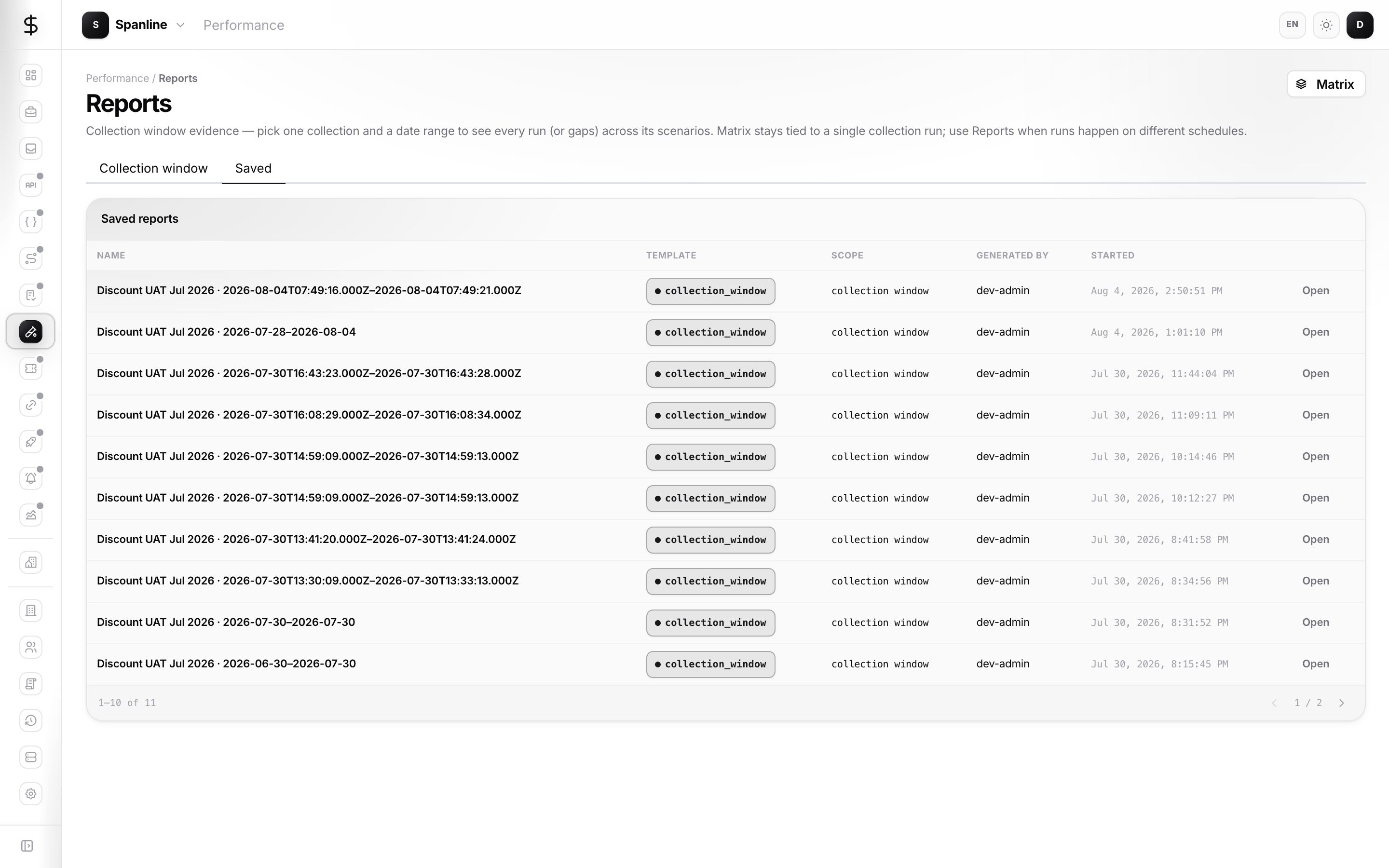
View layouts (list / group / charts)
On the collection window and saved snapshots, use View pills:
| Layout | Best for |
|---|---|
| List | Flat evidence grid (default for one collection) |
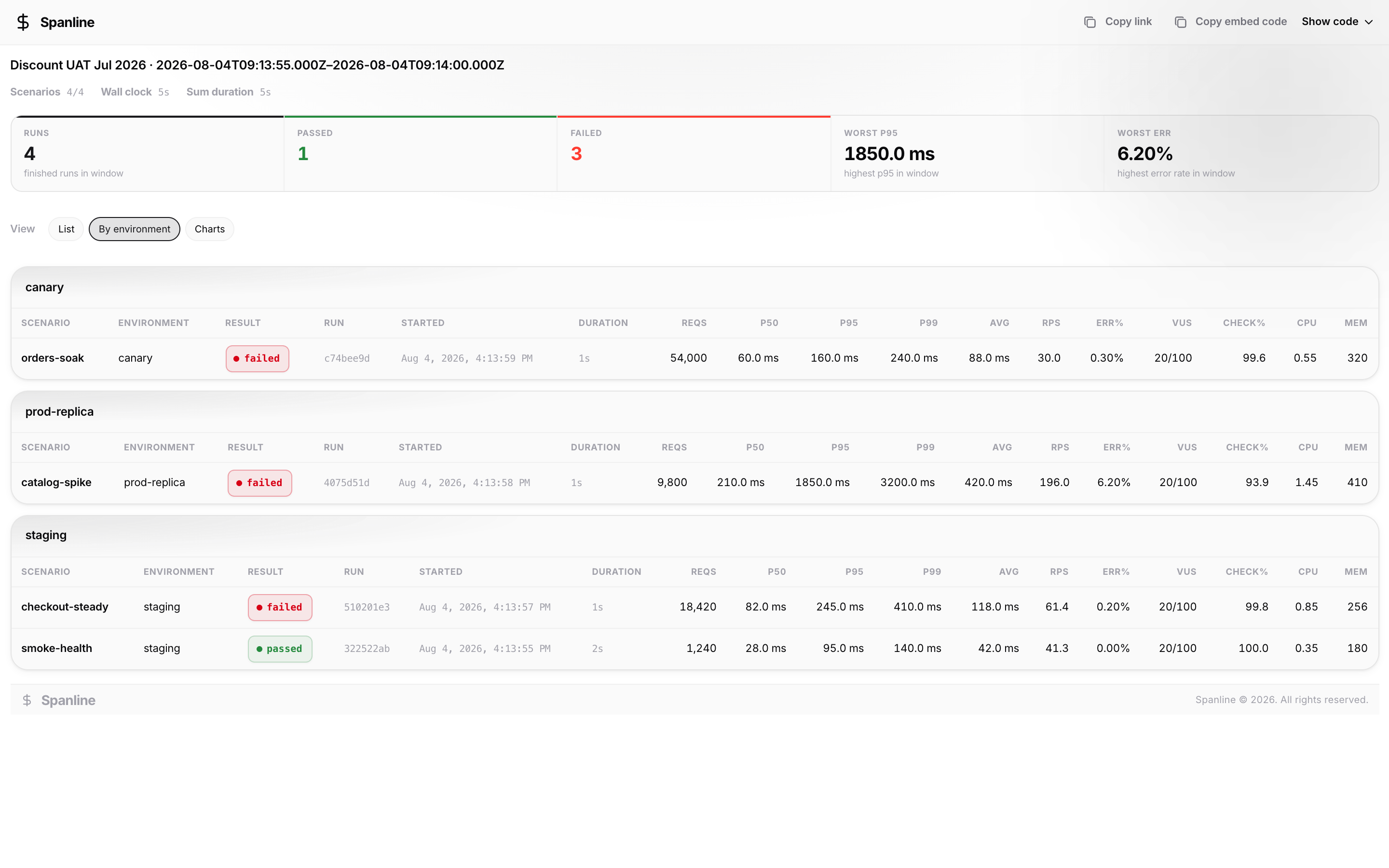
| By environment | Sections grouped by environment name |
| By collection | Accordion per collection (default for bundles) |
| Charts | Pass/fail split and worst p95 bars by scenario |
URL param: viewLayout=list|group-env|accordion|charts (bundle defaults to accordion).
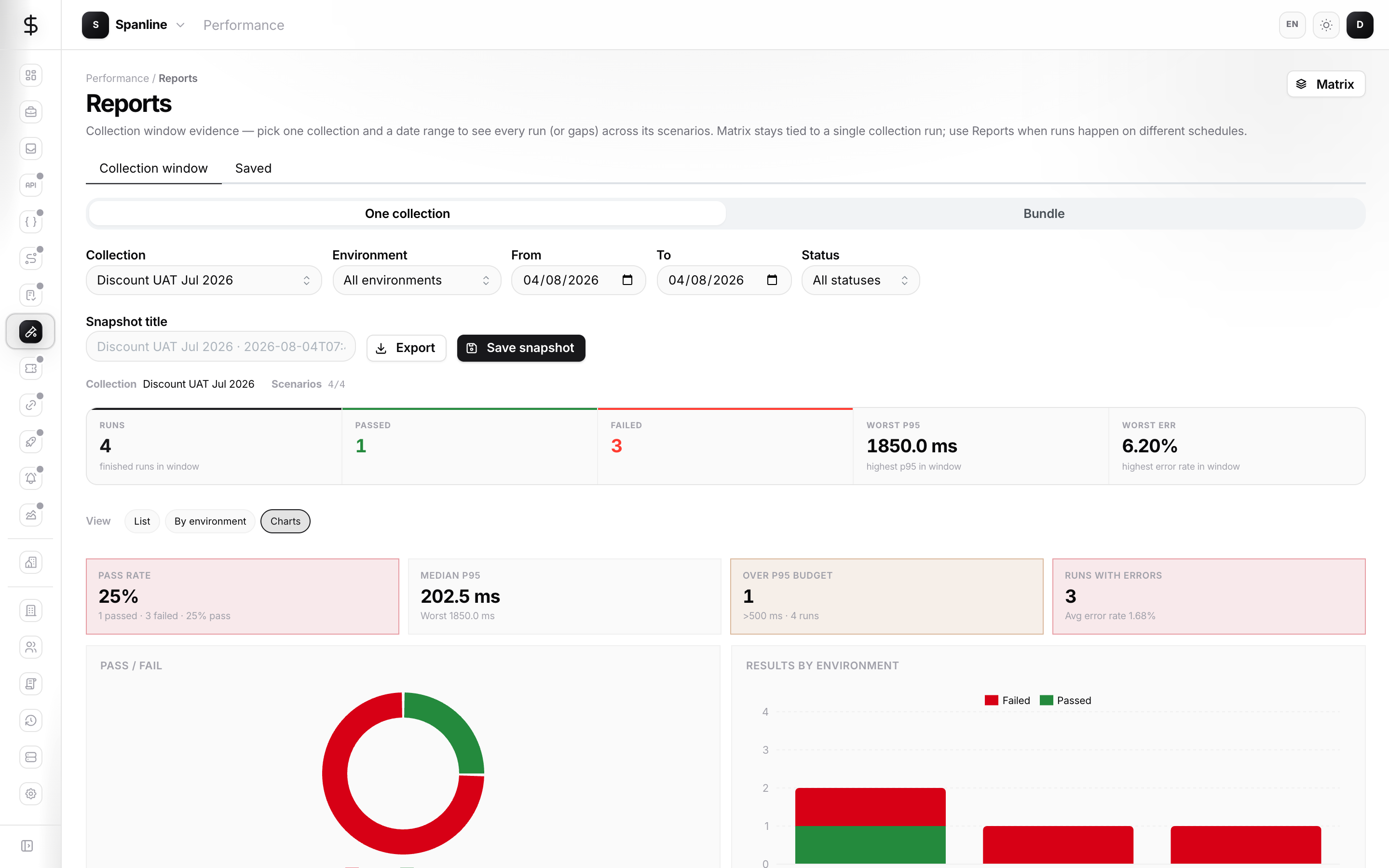
Save snapshot
Save snapshot captures the current window (single or bundle) as JSON inside the report record.
| Field | Meaning |
|---|---|
| Snapshot title | Optional UI field — empty uses a default from collection/preset + date range |
| Preset name | Separate from snapshot title — only for saving/updating a workspace bundle preset |
| Template | collection_window or collection_set |
| Scope | Collection id, or comma-separated ids for bundle |
| Generated by | Username of the member who saved |
Snapshots are workspace-scoped. Viewers with Performance access can open them; members can create shares from the viewer toolbar.
Snapshot viewer (Saved → Open)
Open on a Saved row goes to the dedicated page:
https://app.spanline.dev/performance/reports/view/{reportId}
There is no modal viewer anymore — you always land on this page inside the app shell (Back to Saved, Export PDF, Embed & share).
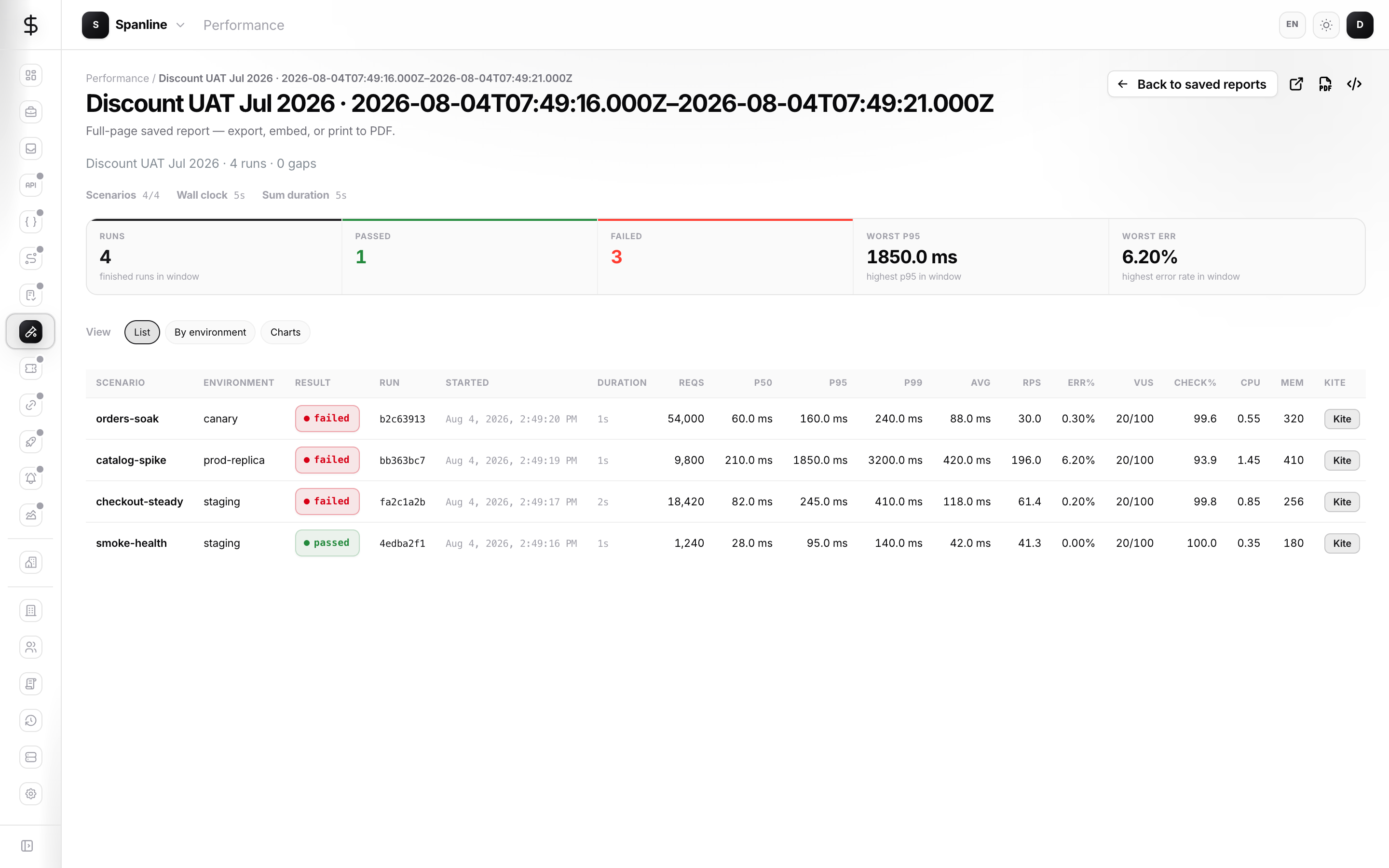
| Control | Action |
|---|---|
| Back | Return to Performance → Reports → Saved |
| Export PDF | Opens a print-only tab (?print=1) with Spanline brand chrome, then the browser print dialog — choose Save as PDF. The tab closes when print finishes. |
| Embed & share | Workspace embed snippet + public link controls |
Print / PDF chrome
Print mode strips app navigation and keeps report content only, wrapped with Spanline brand header and footer so exported PDFs stay on-brand.
Workspace vs public routes
| Audience | View URL | Embed URL |
|---|---|---|
| Signed-in workspace | /performance/reports/view/{reportId} |
/performance/reports/embed/{reportId} |
Workspace embed requires a normal Spanline session and workspace membership — same rules as viewing the report in the app.
Public link (password + unlock)
For stakeholders without Spanline accounts, create a public link from Embed & share on the snapshot toolbar.
What the owner does
- Open a saved snapshot (Open → viewer page).
- Click Embed & share (code icon).
- Under Public link, click Create link or Rotate link — the link is always an unlisted URL + password (anyone who has both can unlock).
- Copy from the popover:
- Generated password — six characters (0–9andA–Z).
- View URL —https://app.spanline.dev/p/r/view/{gateToken}— this is not the embed secret.
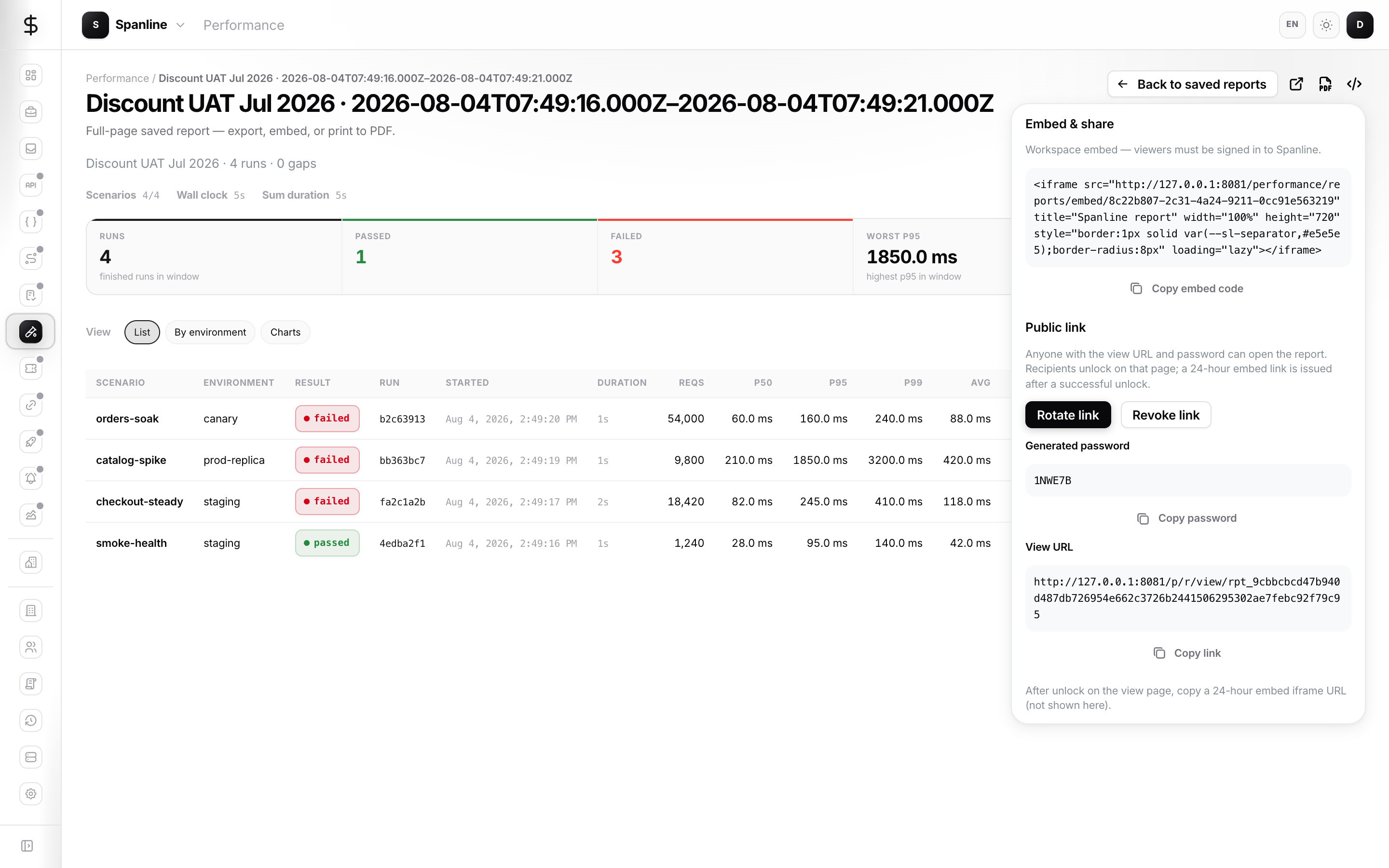
Reopen credentials: while the share stays active, workspace members can reopen Embed & share and see the password and View URL again (they are stored for the workspace until you Revoke). Prefer Rotate if either may have leaked.
The popover does not show a long-lived public embed URL. Recipients unlock on the view page; a short-lived embed token is issued after a successful password.
Rotate invalidates the previous gate token. Revoke disables public access and clears outstanding embed tokens for that report.
What the recipient sees (unlock gate)
- Open the view URL (no embed token in the address bar).
- A branded unlock screen asks for the password.
- Use language / theme controls if needed, then click Unlock.
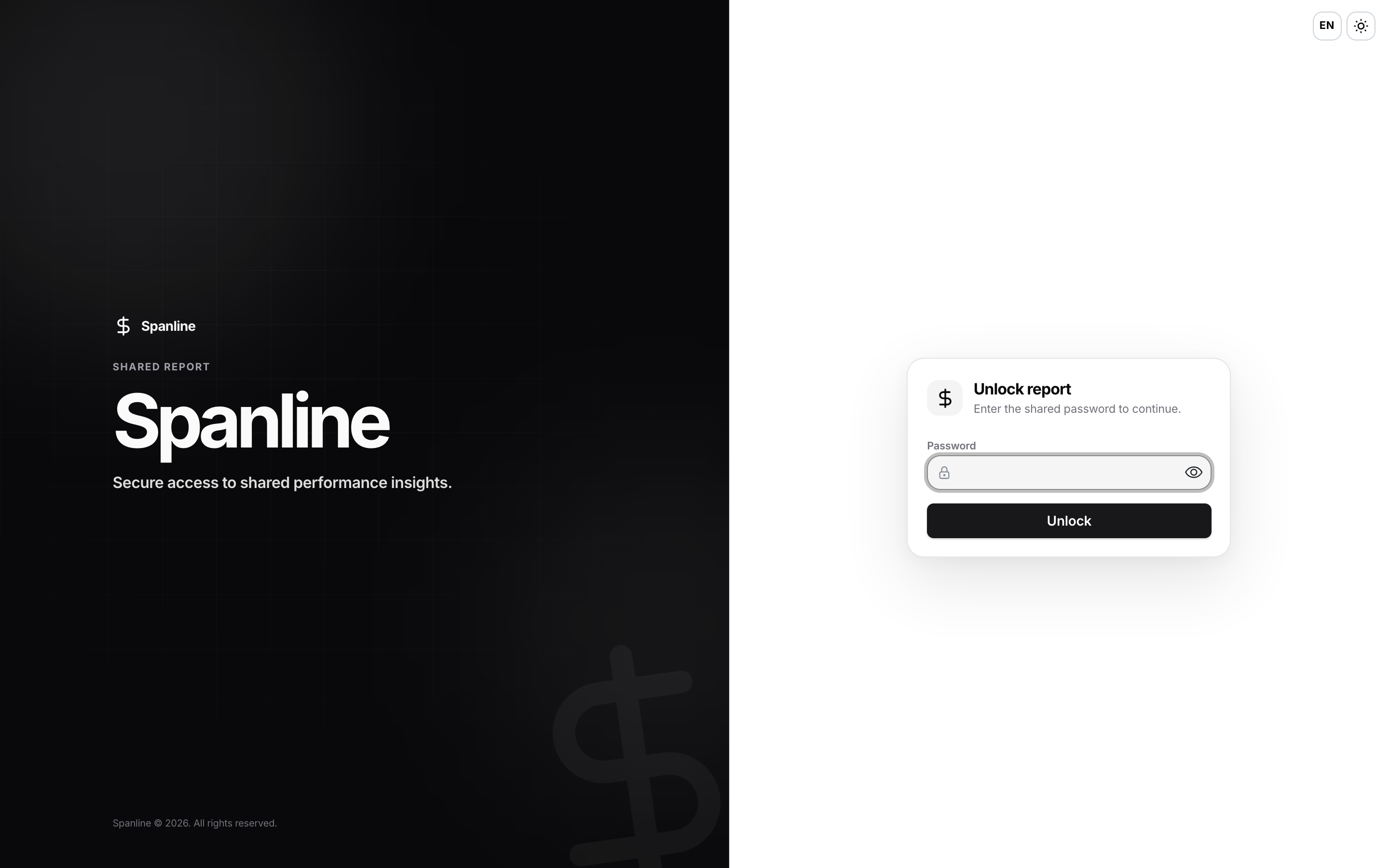
- On success:
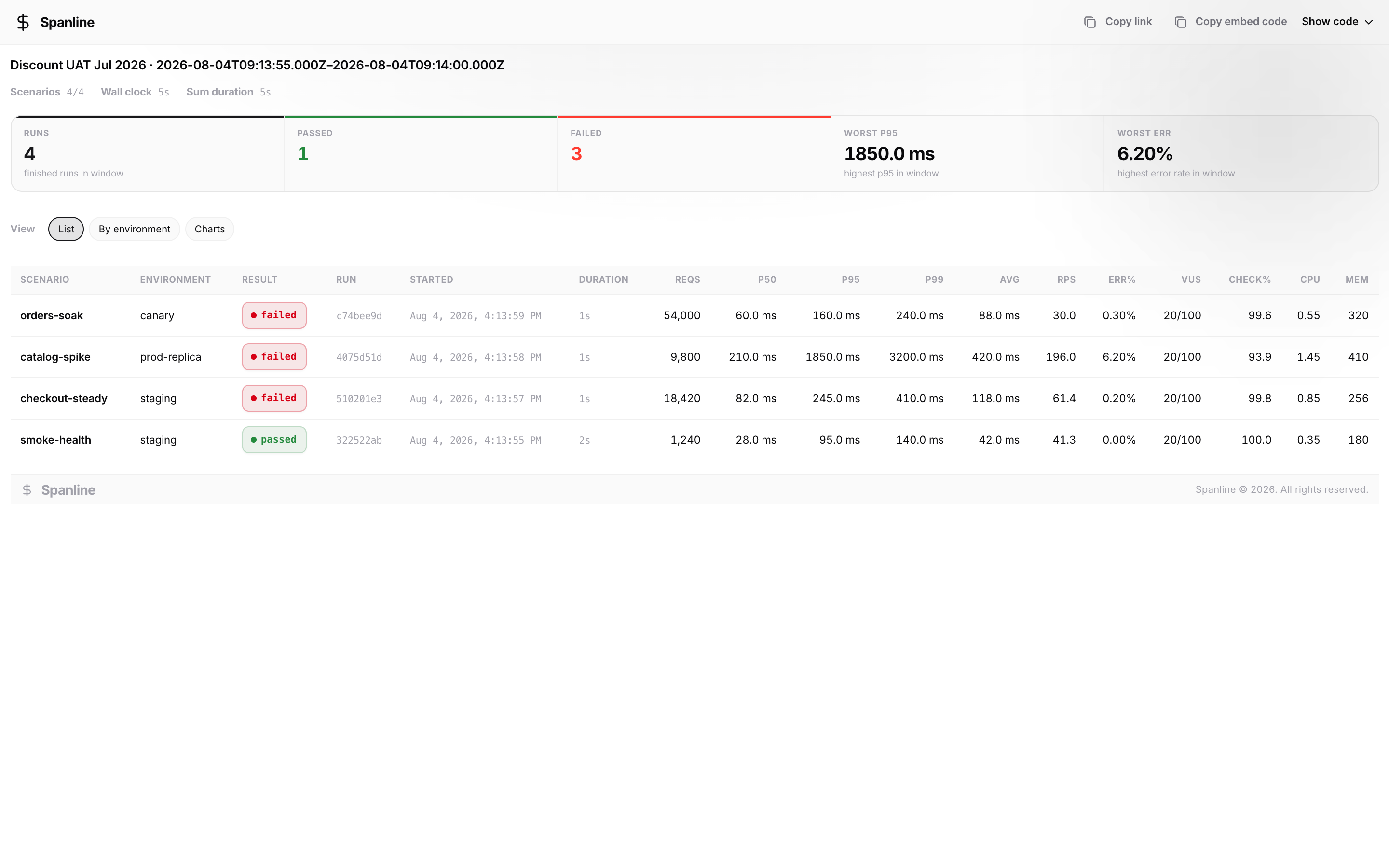
- A slim top bar shows Spanline, plus Copy link, Copy embed code, and Show code for the 24-hour embed.
- The report renders below in an iframe at/p/r/embed/{embedToken}(Spanline brand appears in the outer bar; the iframe content focuses on the report title and body).
- Use View inside the report — List, By environment, or Charts — same layouts as the in-app snapshot viewer.
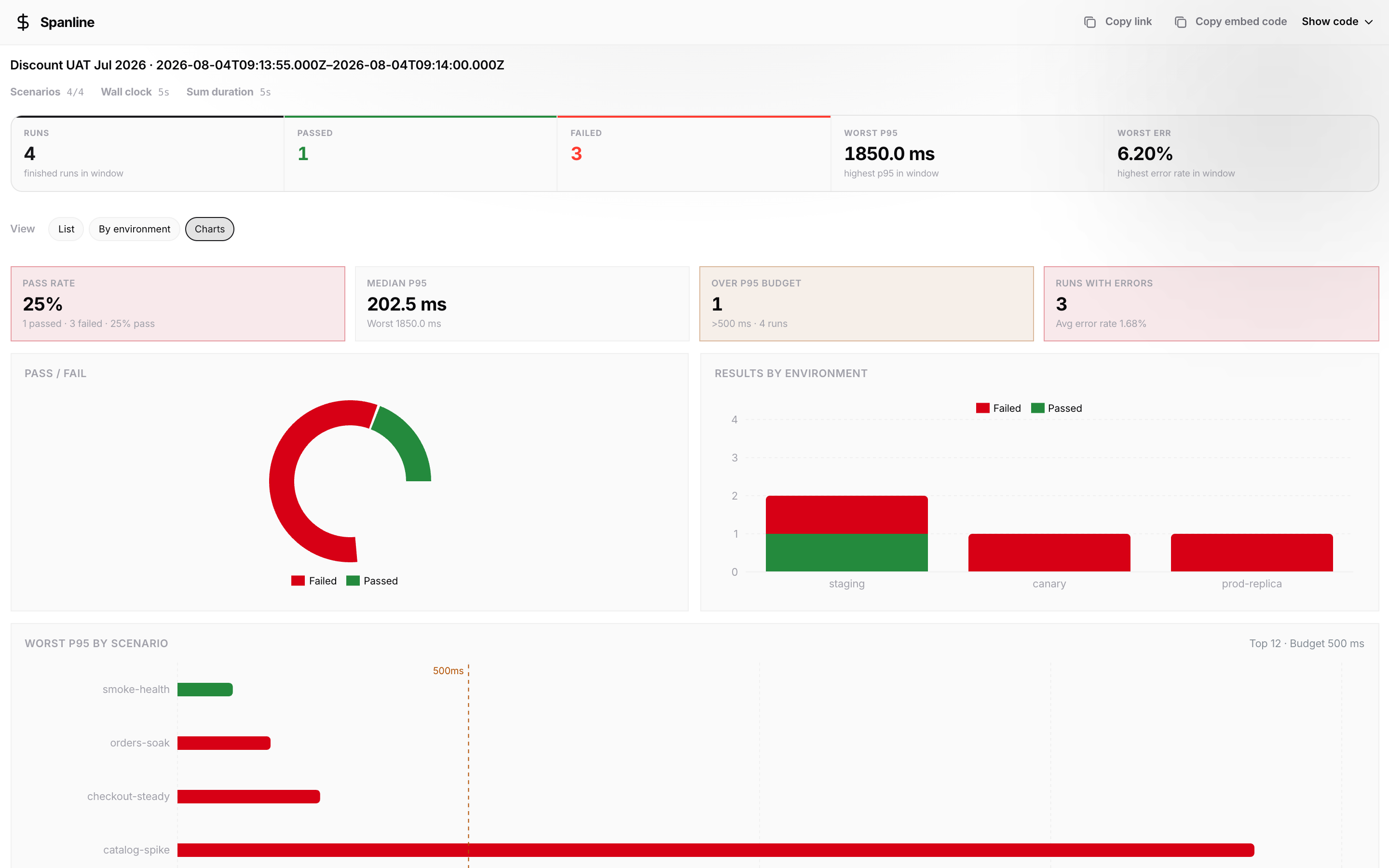
If the password is wrong, stay on the unlock form with an inline error. If the gate link was revoked or rotated, unlock fails with a load/error message.
Embed URL (24-hour token)
| URL | Purpose |
|---|---|
https://app.spanline.dev/p/r/embed/{embedToken} |
Minimal report chrome for <iframe> — no password; the token is the secret |
| Expiry | 24 hours after unlock — then embed shows expired; unlock again on the view URL |
Embed tokens are not the same as the view gate token. Treat embed URLs like short-lived credentials: do not commit them to git, tickets, or long-lived wiki pages.
Legacy path
Older links https://app.spanline.dev/p/r/{gateToken} redirect to /p/r/view/{gateToken}.
URL quick reference
| Path | Auth | Password | Typical use |
|---|---|---|---|
/performance/reports |
Workspace | — | Build window, Saved list |
/performance/reports/view/{id} |
Workspace | — | Full-page snapshot |
/performance/reports/embed/{id} |
Workspace | — | iframe for teammates |
/p/r/view/{gateToken} |
None | Required on page | External stakeholder unlock |
/p/r/embed/{embedToken} |
None | None (token) | iframe after unlock; expires in 24h |
API equivalents (for integrators): POST /api/share/performance/reports/{gateToken}/unlock → { embedToken, expiresAt }; GET /api/share/performance/reports/embed/{embedToken} → report JSON.
Roles
| Action | Minimum role |
|---|---|
| View Reports, open snapshots | Viewer |
| Export CSV, save snapshot | Member |
| Create / rotate / revoke public link | Member (via snapshot toolbar on the viewer) |
Org owner / admin manage workspace membership; platform operators do not gain org admin writes through system_admin — see Access & secrets.
Hygiene
- Treat View URL + password as the long-lived public pair for an active share; use Rotate after any suspected leak.
- Do not put production secrets into report titles or snapshot summaries you plan to share.
- Prefer short-lived embed URLs only where you need an iframe — not in permanent docs.
- For compliance, treat bundle snapshots like Matrix exports — they may contain run ids and environment names.
Related
- Guides — Matrix, Trends, collections
- Access & secrets — public share model
- FAQ — empty window, unlock failures, expired embed
- Concepts — which analytical view to pick