Getting started
This page walks an organization owner or admin through the first tasks: open the org, invite a member, and land the team in a workspace. You do not need platform operator access.
What you will need
| Need | Notes |
|---|---|
| Spanline account | app.spanline.dev |
| Org owner or admin | Members can view most tabs; invites need admin |
| A workspace | Created with the org or from Workspaces |
Step 1 — Open the organization
- Sign in.
- Open Platform → Organizations (
/organizations). - Click your organization name (or create one with Create organization if your account allows it).
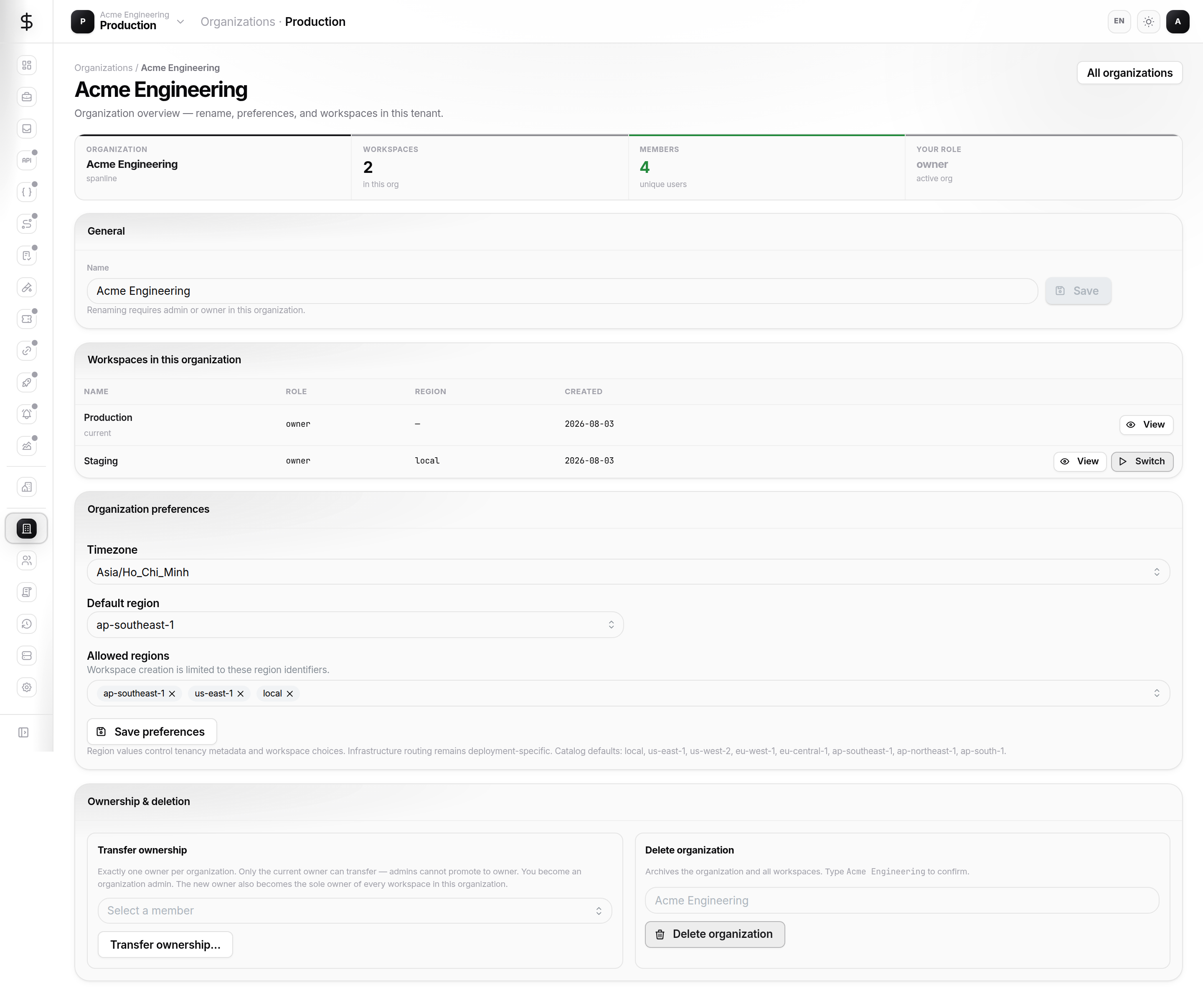
You land on Overview with org name, slug, and KPIs.
Step 2 — Invite a member
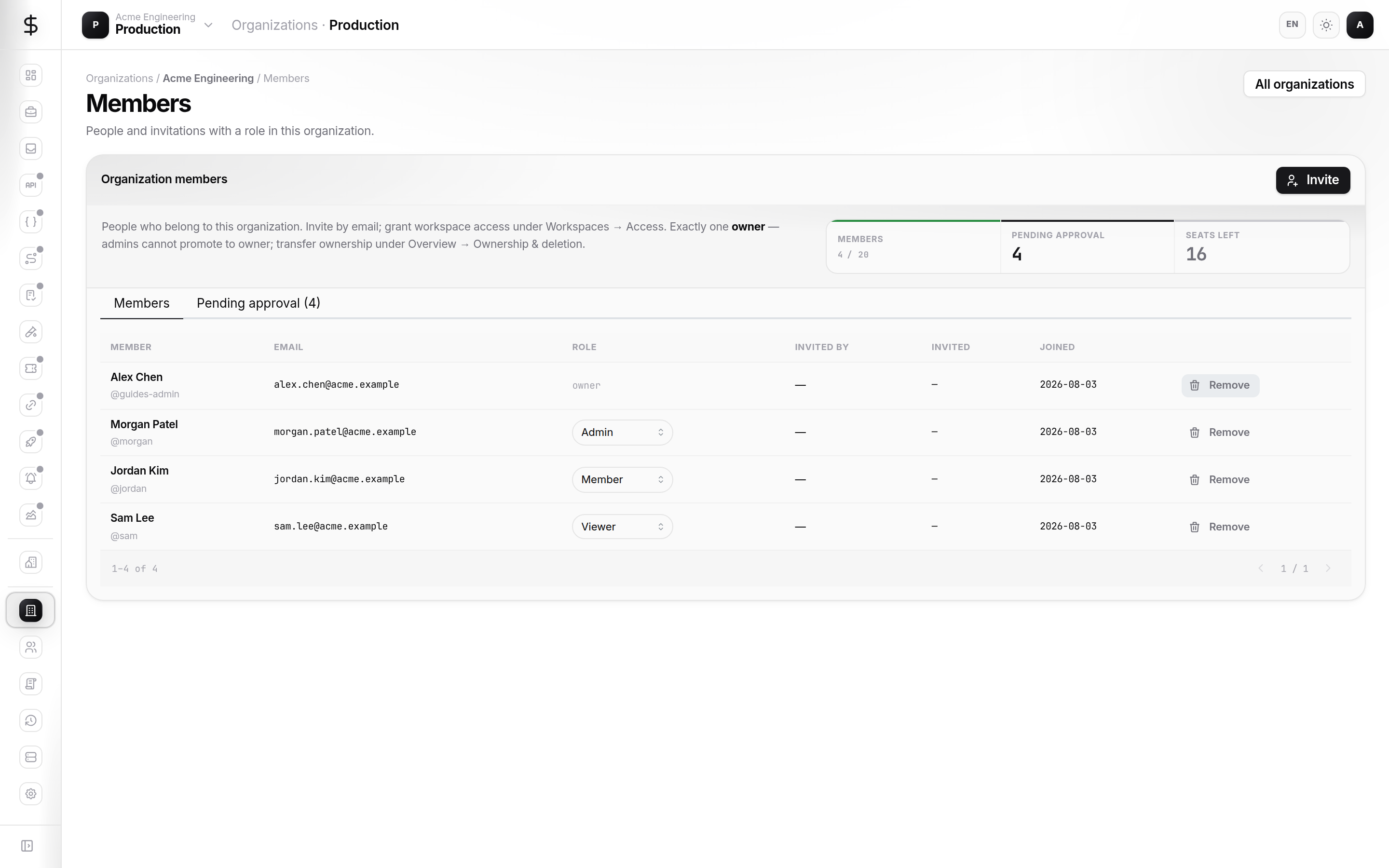
- Open Members in the org sub-nav.
- Click Invite members.
- Enter one or more work emails (comma or newline separated).
- Choose an org role:
- Admin — manage settings, members, SSO (not ownership transfer)
- Member — standard access; workspace roles are granted separately - Send invites and share the invite link from the results drawer if email delivery is not configured.
Invited users accept via Sign up or Sign in with the same email.
Step 3 — Create or open a workspace
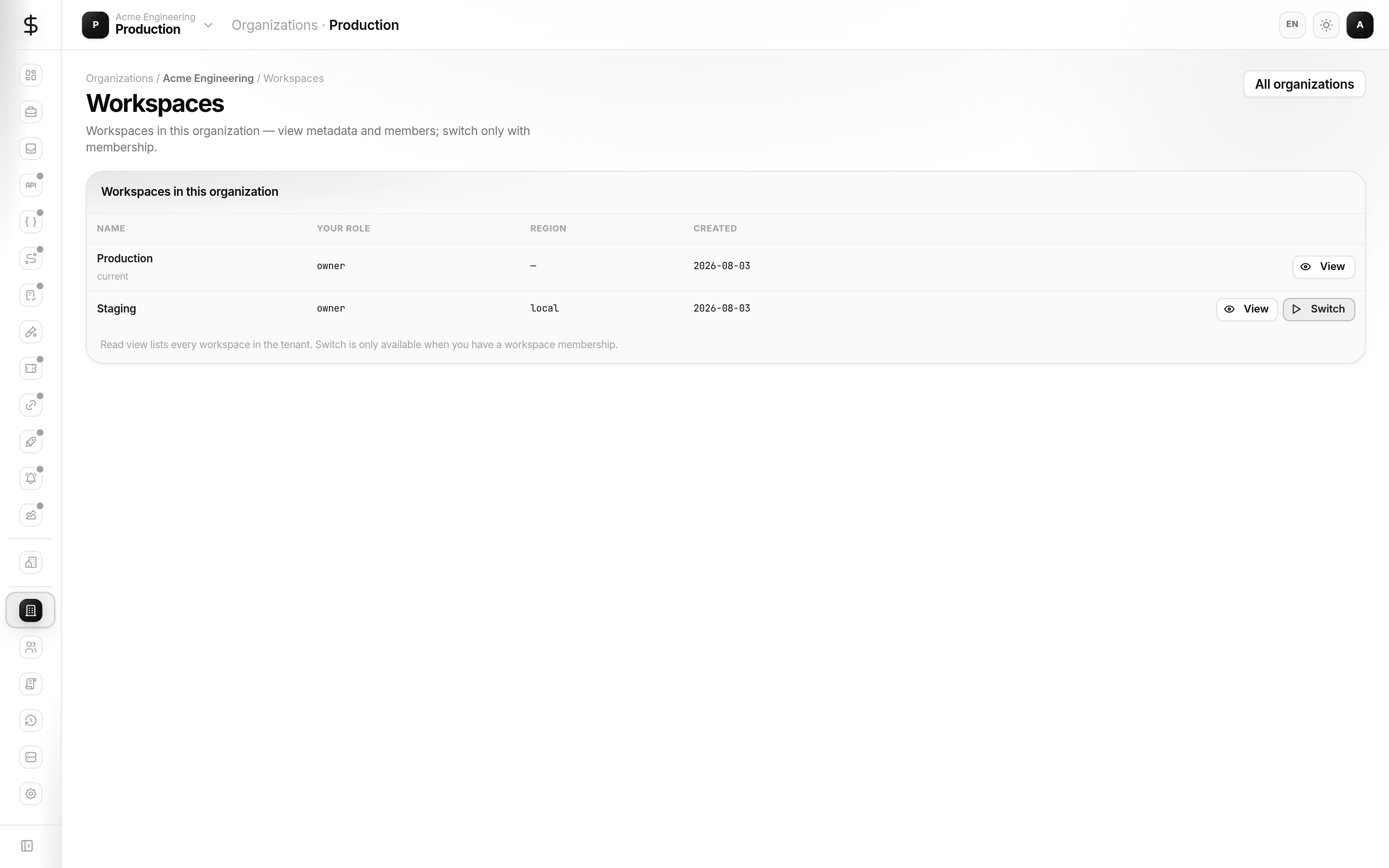
- Open Workspaces under the org.
- Click New workspace (when quota allows), or Switch into an existing workspace.
- After switch, the header shows the workspace name — product rails now scope to this workspace.
Workspace creation and quotas may be limited by your Plan tab.
Step 4 — Optional policy before scale
| When… | Do this… |
|---|---|
| You use Lark / OIDC SSO | SSO — enable provider, set slug, test login |
| SSO users should auto-join | SSO — configure auto-approve or department allowlist |
| You want MFA for everyone | Security — require MFA enrollment |
| Email must match your domain | Domains — verify domain, restrict SSO |
Do not disable password login until at least one SSO provider works — the UI warns you.
Step 5 — Hand off to workspace admins
Workspace members and environments are managed under Workspace → … in the product rail. Point teammates to Workspaces getting started.