Getting started
This page walks a workspace member through picking the right workspace, adding an environment, and linking it to Performance. No org admin powers required.
What you will need
| Need | Notes |
|---|---|
| Spanline account | app.spanline.dev |
| Workspace membership | At least Viewer; Admin to manage members/environments |
| Optional: Performance scenario | Performance getting started |
Step 1 — Select the workspace
- Sign in at app.spanline.dev.
- Use the workspace switcher in the header (organization name / workspace name).
- Pick the workspace your team uses (for example
Default).
Everything in Dashboard, Capture, and Performance now reads and writes this workspace’s data.
If you only see one workspace, the switcher still shows the name — you are already scoped correctly.
Step 2 — Confirm on the Dashboard
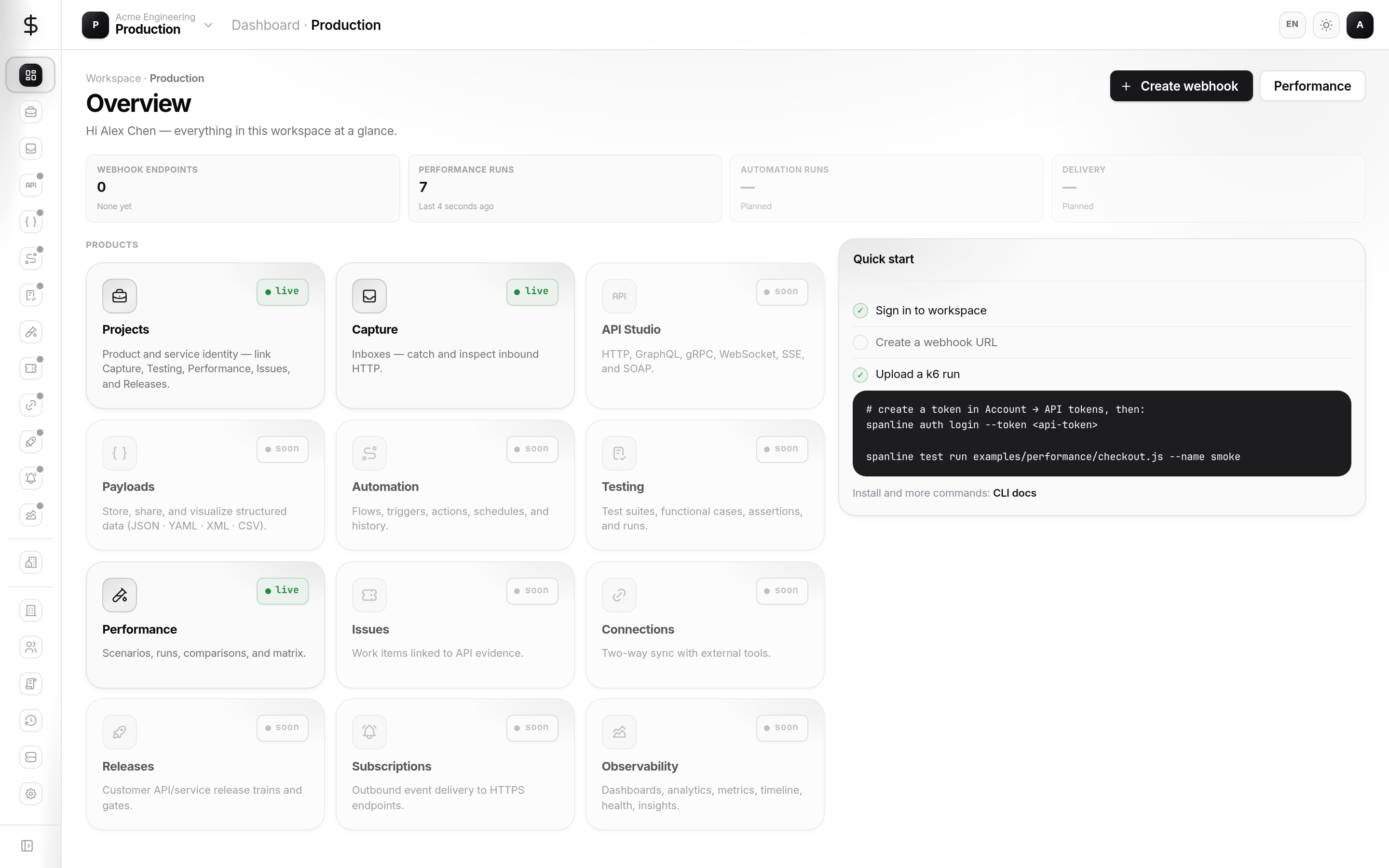
Open Dashboard (/). You should see:
- Workspace name in the header
- Shortcuts to create a Capture inbox or open Performance
- KPIs for Capture inboxes and Performance runs in this workspace
Step 3 — Create an environment
Environments hold base URLs and secrets scenarios reference.
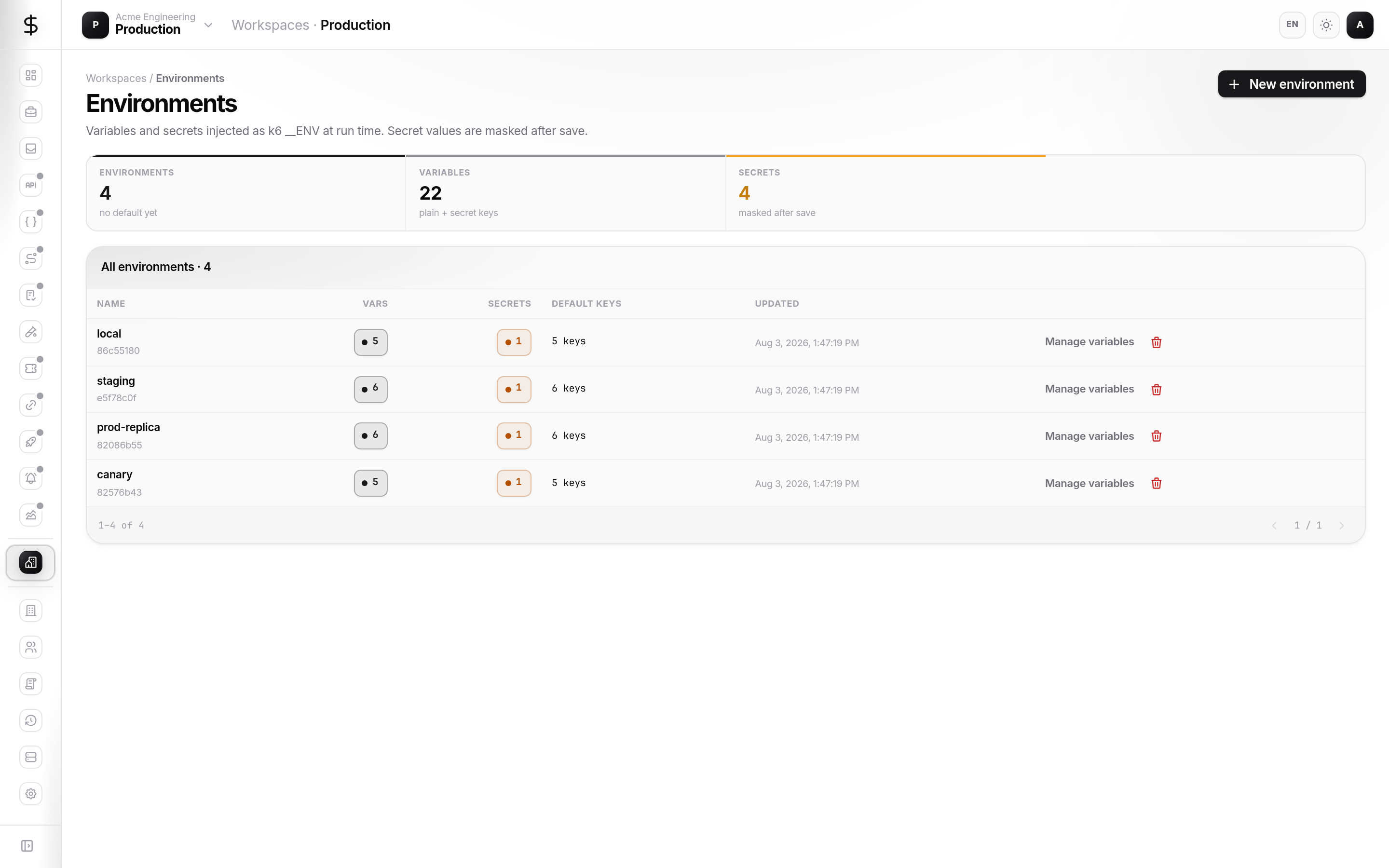
- Open Workspace → Environments (
/workspaces/environments). - Click New environment — name it (for example
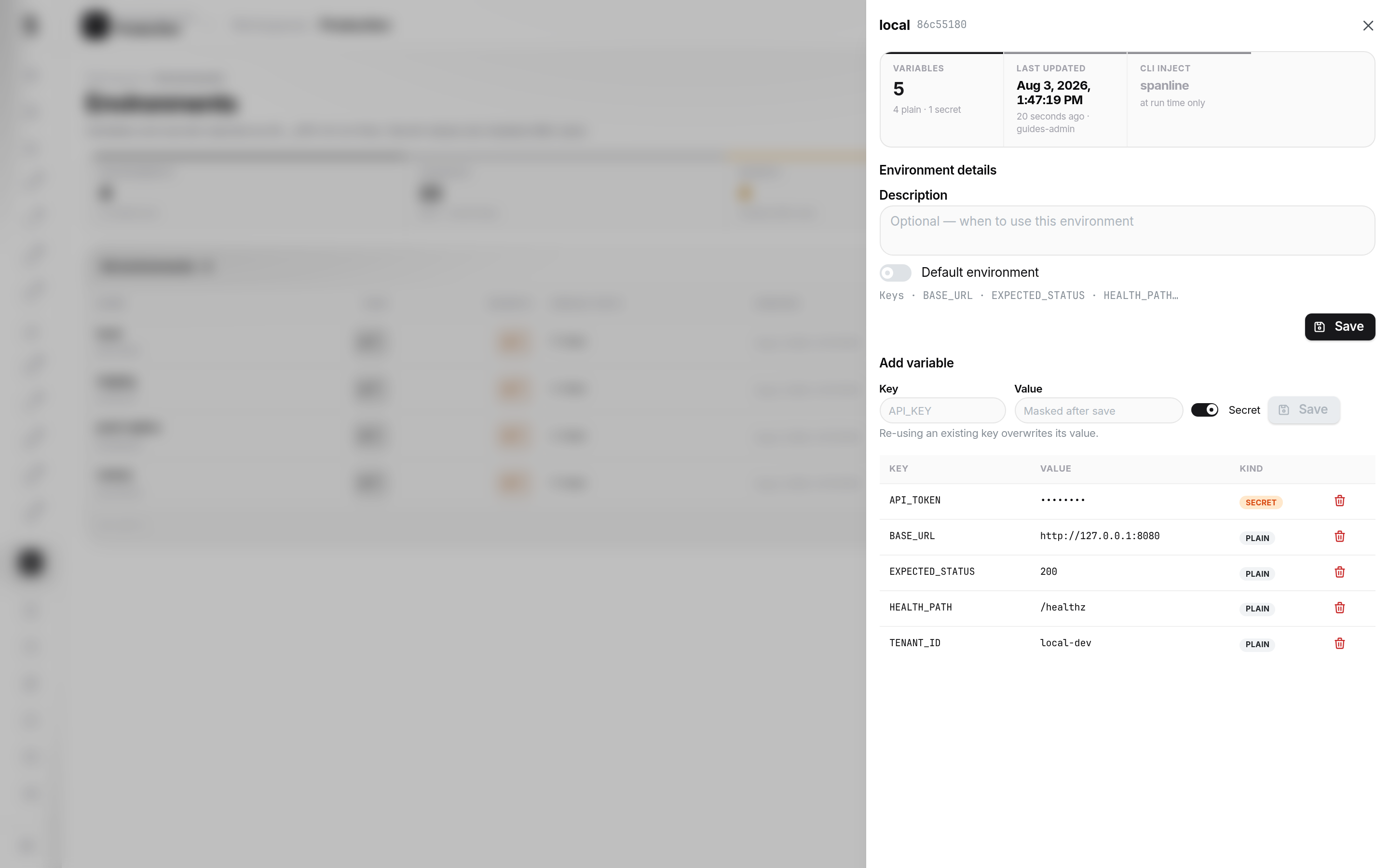
staging). - Open the environment row → add variables:
- Plain values for URLs and IDs
- Secret for API keys (stored sealed; shown as••••after save) - Optionally mark one environment as Default.
See Guides → Environments for the variables drawer.
Step 4 — Use the environment in Performance
- Open Performance → Scenarios → create or edit a scenario.
- Attach your environment in the scenario editor.
- Run from the CLI — Performance → Run tests.
Step 5 — CLI and multiple workspaces
If your account has more than one workspace, set an explicit target before running tests:
spanline auth workspace list
spanline auth workspace use <workspace-name-or-id>
Or set SPANLINE_WORKSPACE in CI. See FAQ → CLI picks the wrong workspace.
Next steps
- Organizations — if you need a new workspace created at org level
- Account → API tokens — CLI authentication
- Capture getting started — first inbox in this workspace