Guides
Day-to-day org admin tasks. Sections you cannot open yet (Passkeys, SCIM, …) are omitted.
Overview {#overview}
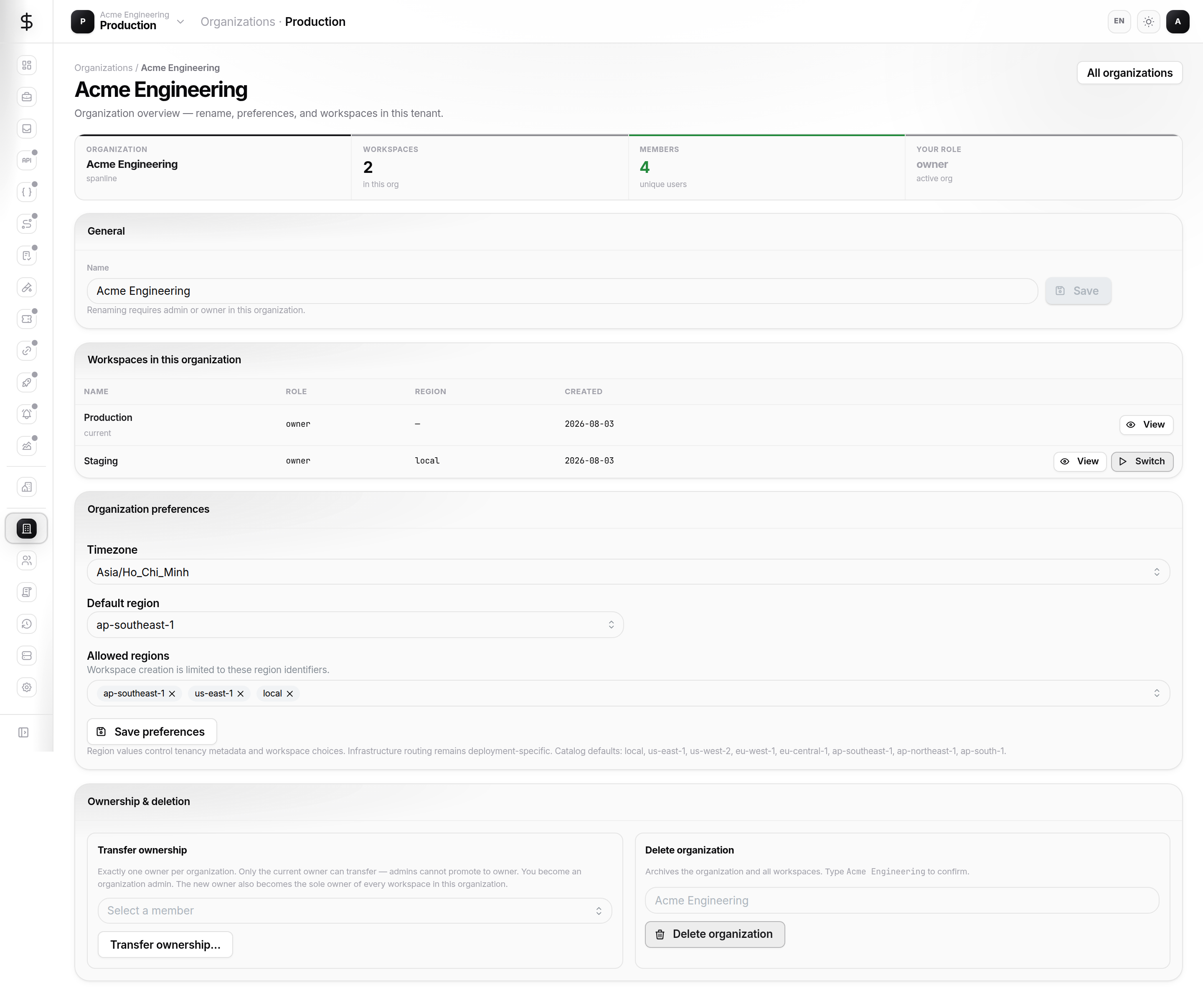
Organizations → your org shows name, slug, KPIs (members, workspaces), and owner actions:
- Rename the organization (admin+)
- Transfer ownership (owner only) — type the org name to confirm
- Delete organization (owner only, danger zone)
Members {#members}
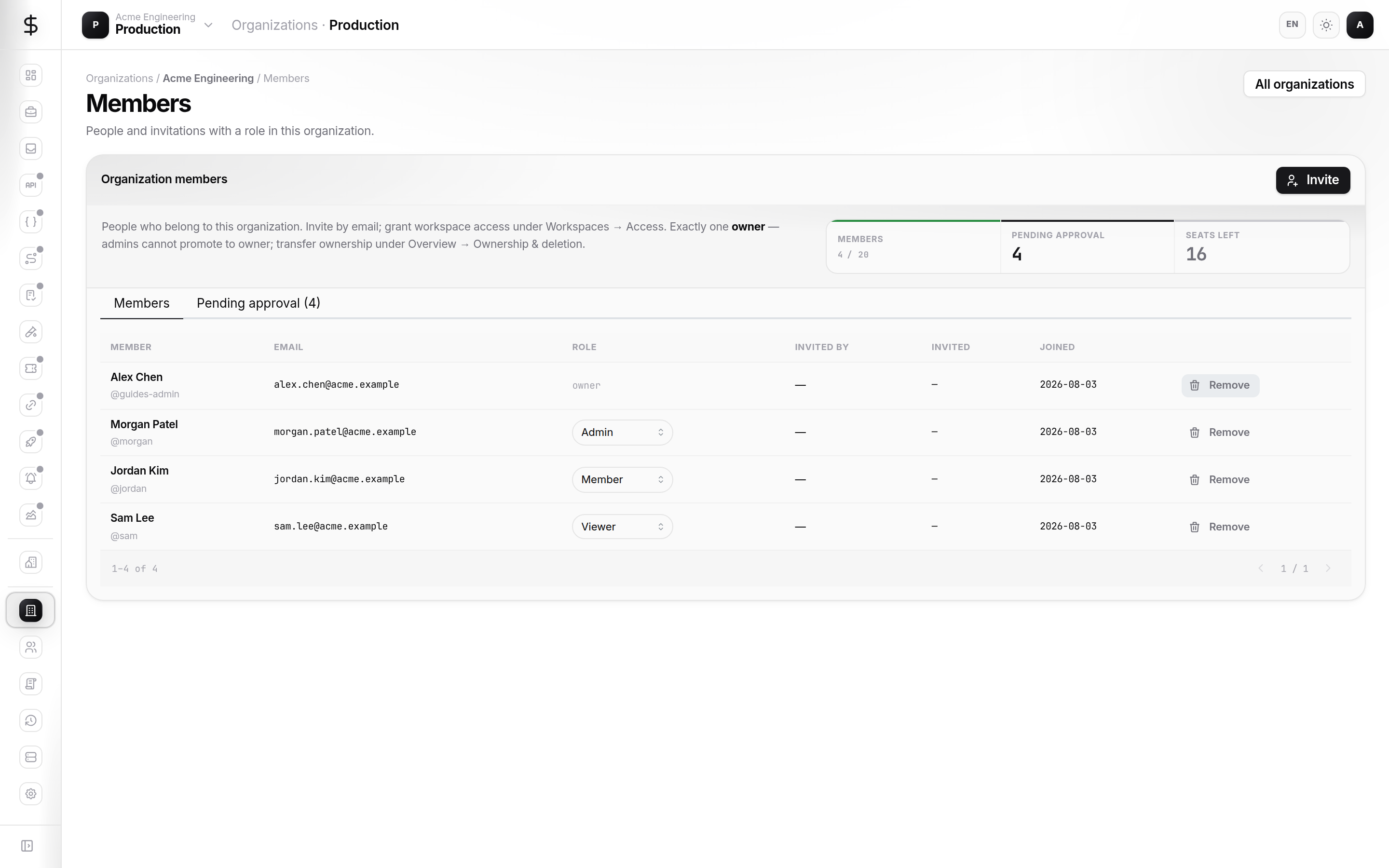
Members has three tabs when SSO join approval is enabled:
| Tab | Purpose |
|---|---|
| Members | Active org members, change role, remove |
| Invitations | Pending email invites, copy link, revoke |
| Pending approval | SSO users waiting for admin approve/reject |
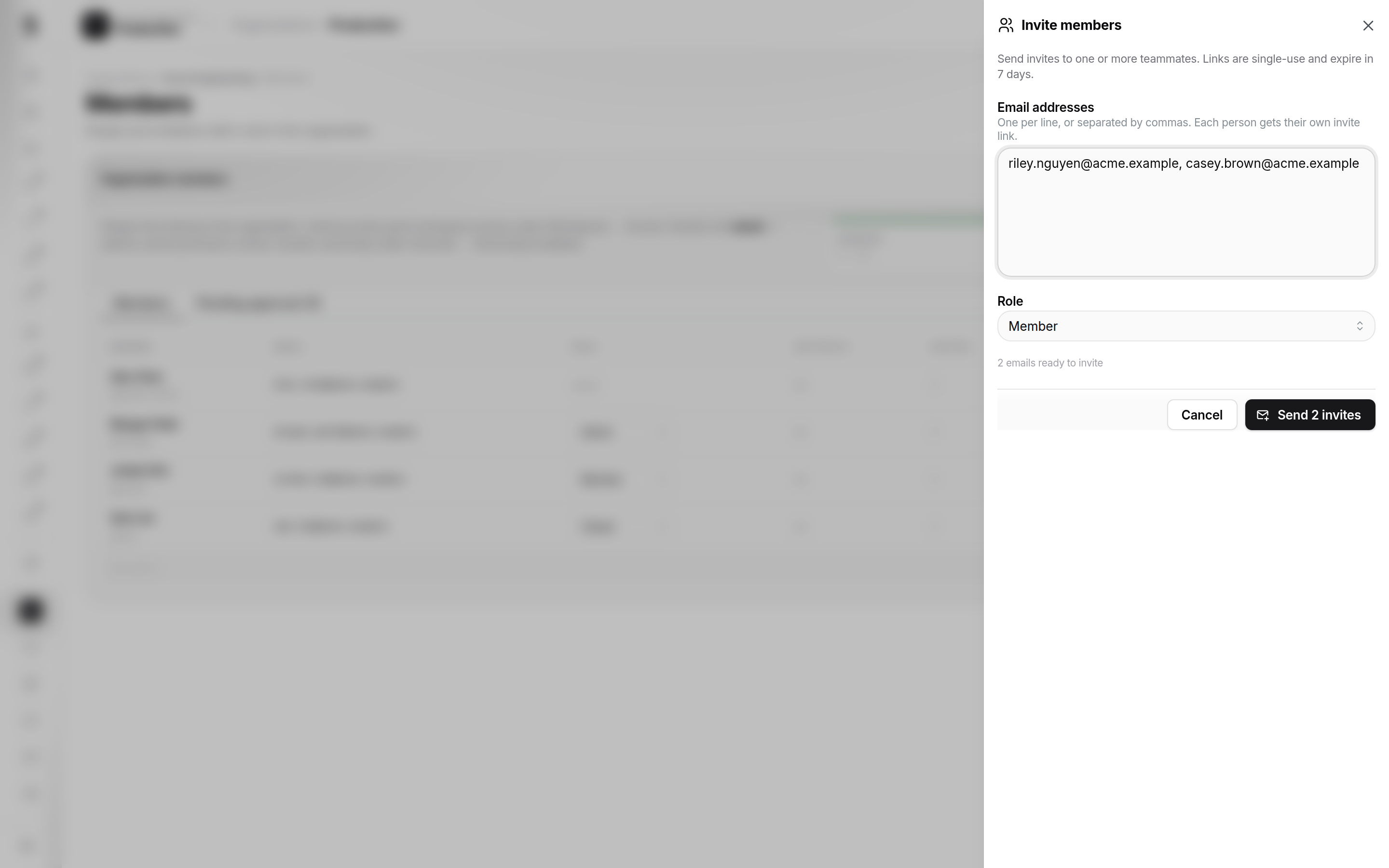
Invite by email
- Invite members → enter emails → pick role → send.
- Share invite URLs from the results list if needed.
- Invites expire per server policy — re-invite if expired.
You cannot invite with role owner — use transfer instead.
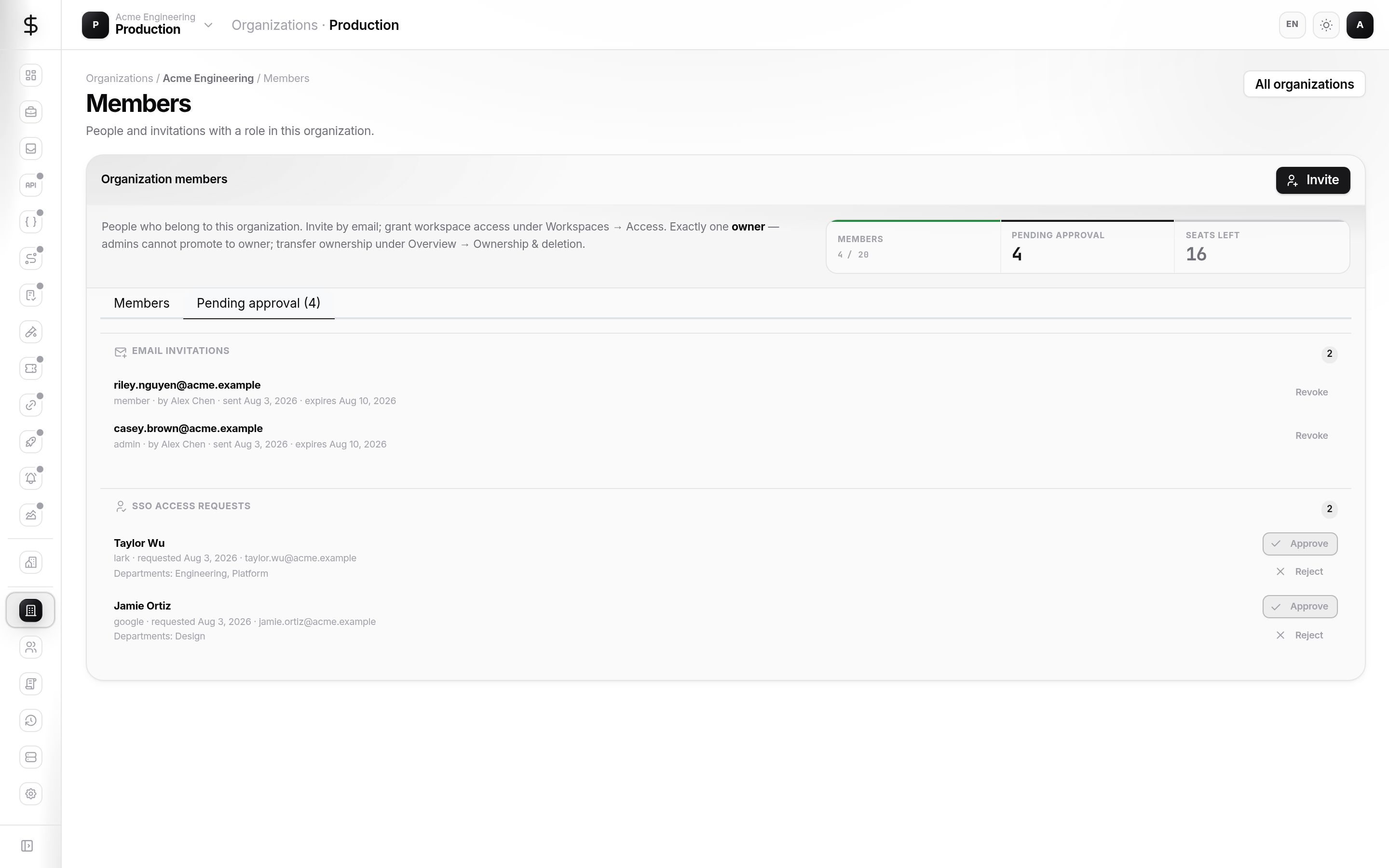
SSO join approval
When SSO is enabled without full auto-approve:
- User completes IdP login.
- Request appears under Pending approval.
- Admin Approve (grants org membership) or Reject.
Configure auto-approve rules on the SSO tab (including Lark department allowlists when applicable).
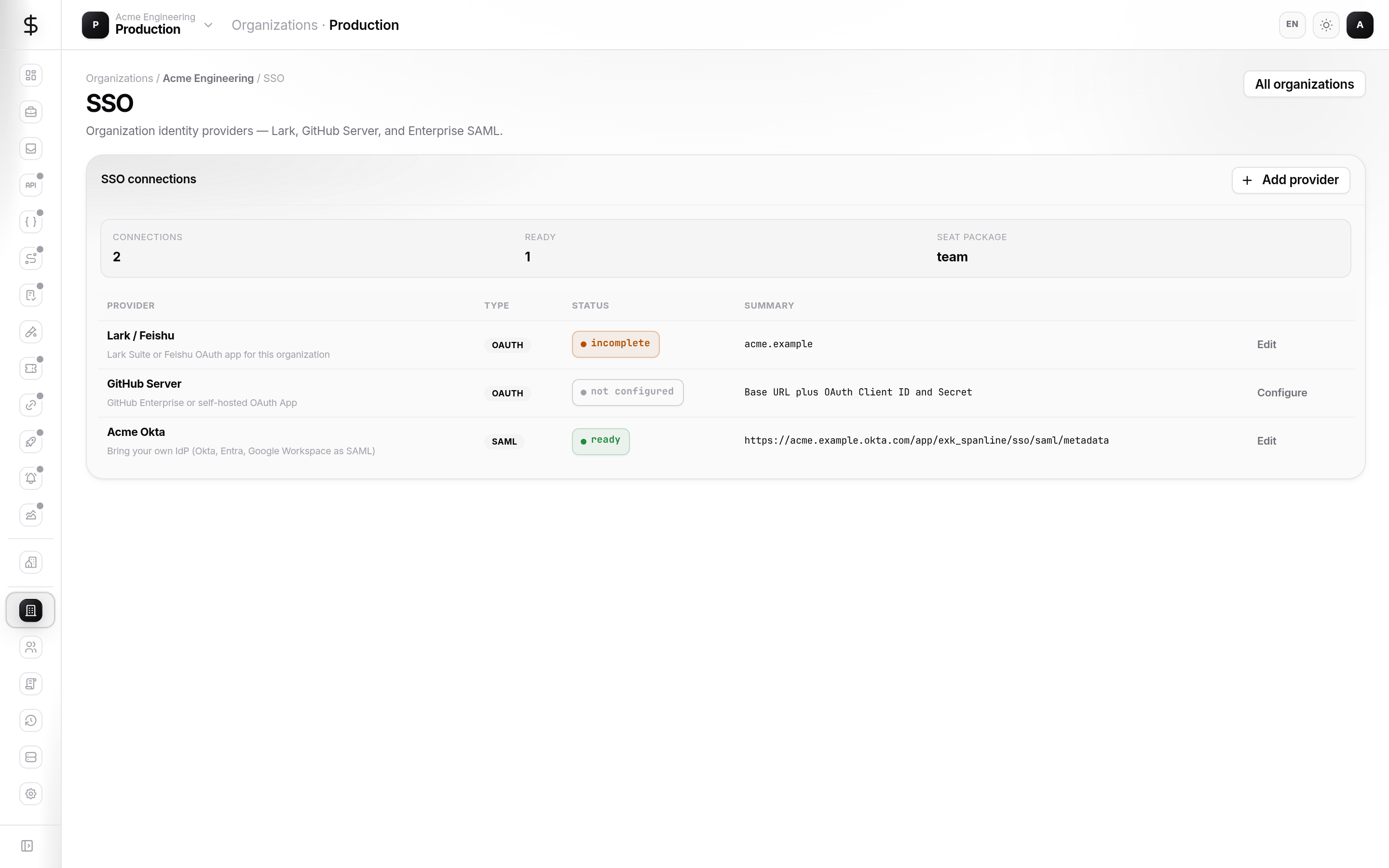
SSO {#sso}
- Open SSO.
- Enable a provider (Lark, OIDC, SAML, …) when your deployment supports it.
- Set credentials and organization slug where required.
- Test with Continue with SSO from a private window.
- Tune Member approval — auto-approve all, selected departments, or manual queue.
Before disabling password login, ensure at least one working SSO provider is enabled.
Security {#security}
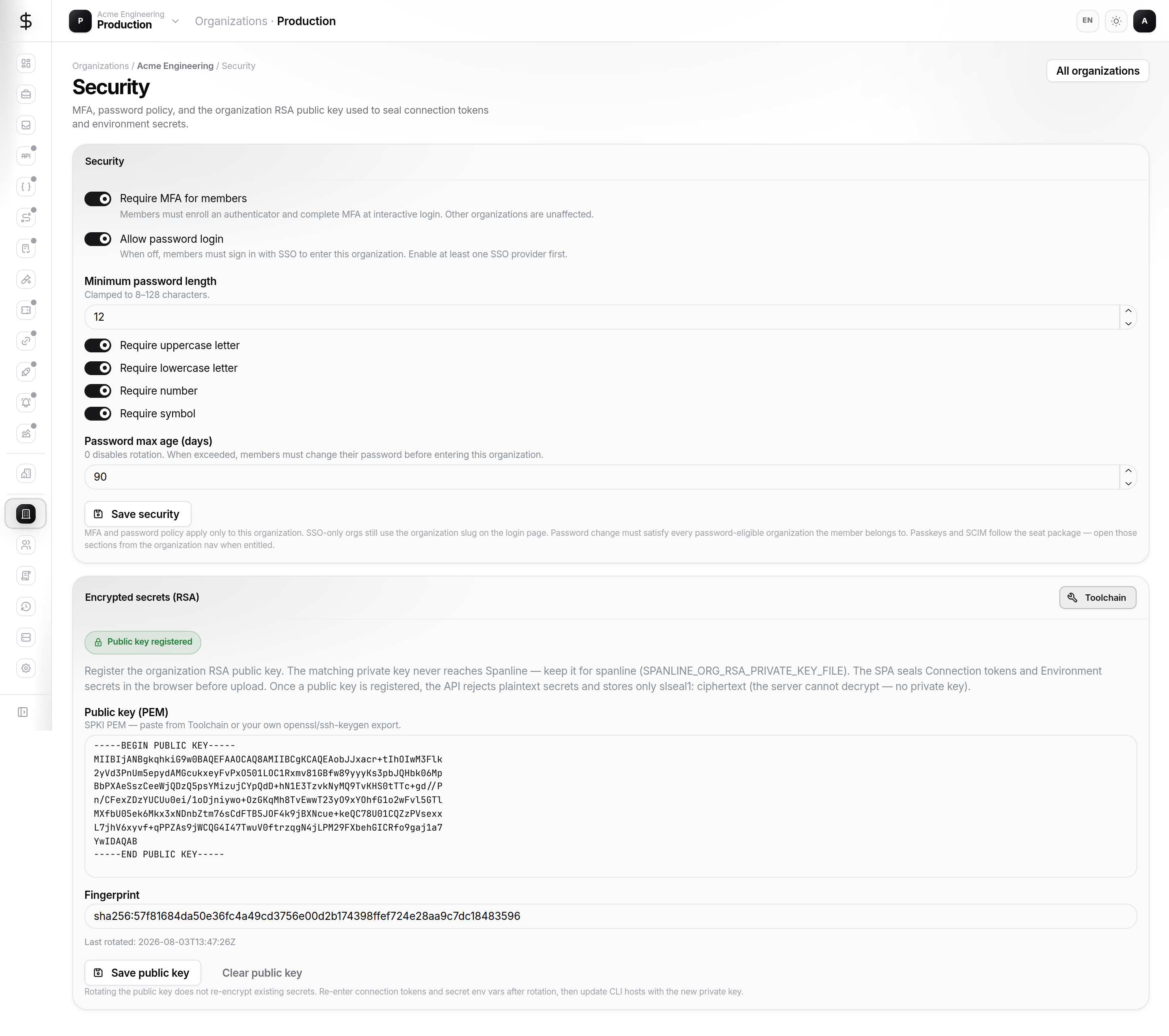
Security covers org-wide auth policy:
- Minimum password length and complexity
- Password rotation / expiry hints
- Require MFA for all members
When MFA is required, members see enrollment prompts until they complete Account → Security.
Domains {#domains}
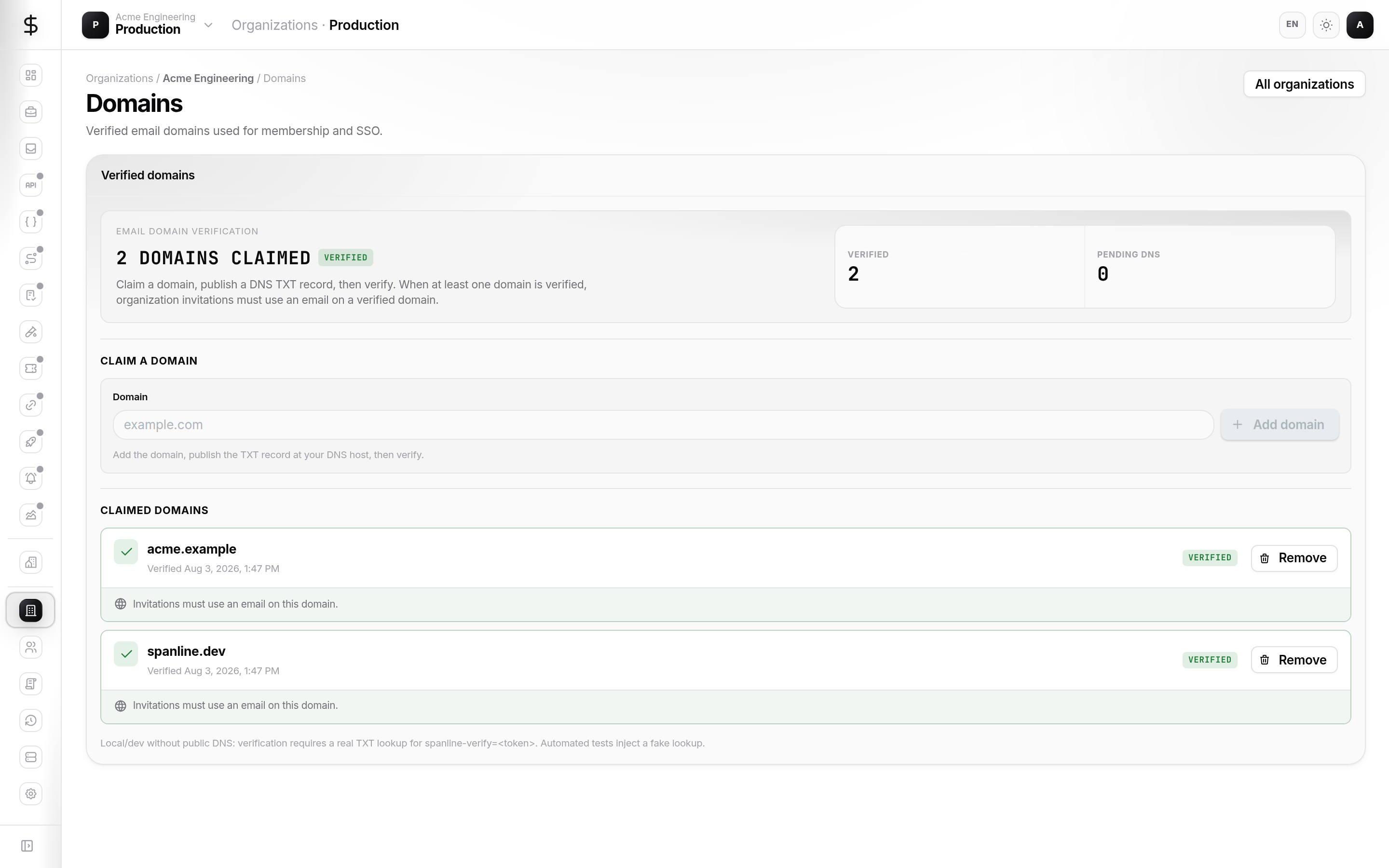
Verify domains you control:
- Add domain → follow DNS or hosted verification steps.
- Use verified domains to restrict SSO email or invitation eligibility.
Domain verification is org-admin only.
Workspaces {#workspaces}
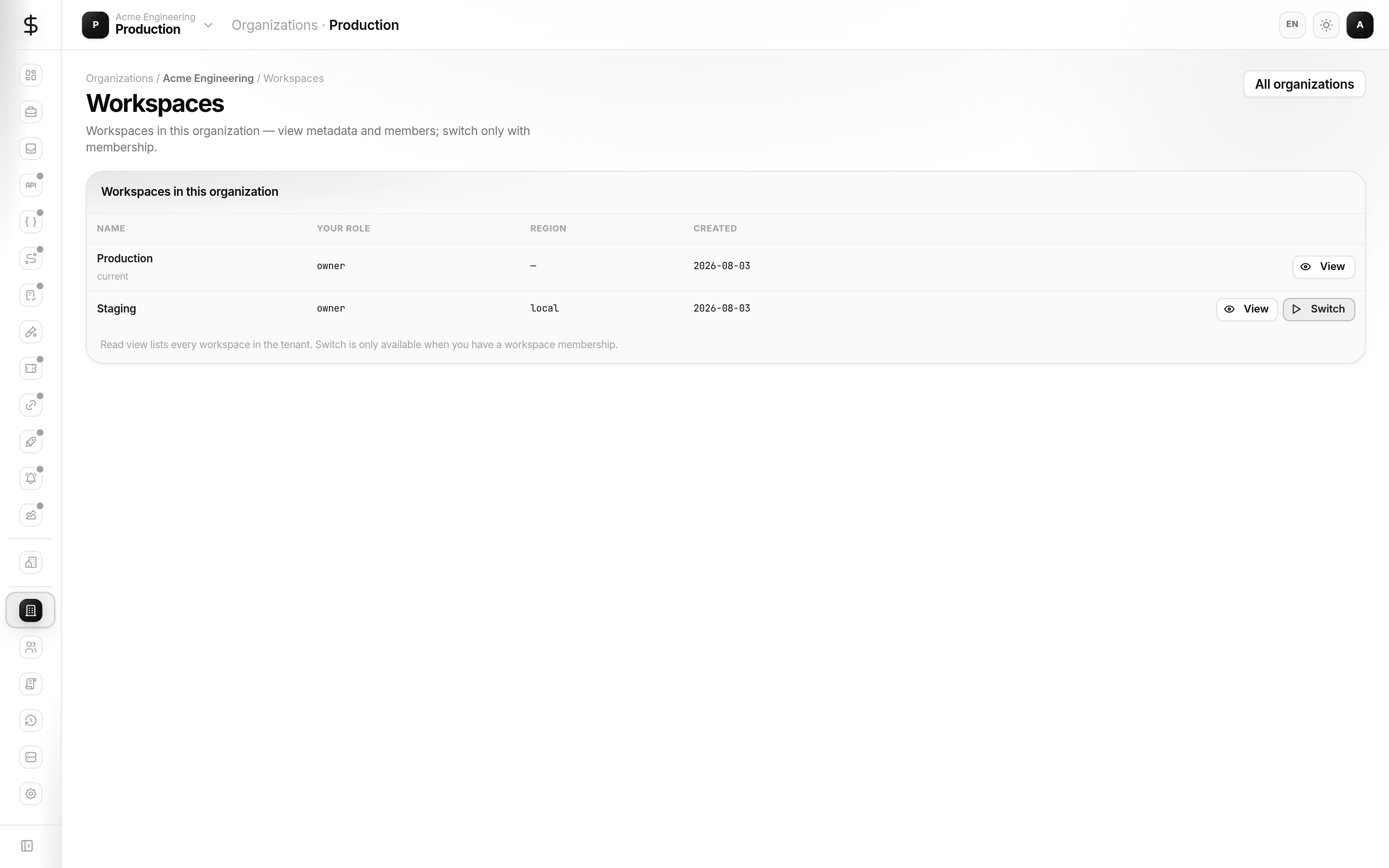
Workspaces under the org lists every workspace in the tenant:
- Switch — changes your session workspace and reloads the app
- New workspace — when plan quota allows
- Open workspace detail for rename/delete (policy permitting)
Creating many workspaces is an org-level decision; day-to-day env setup is under Workspaces → Environments.
Plan {#plan}
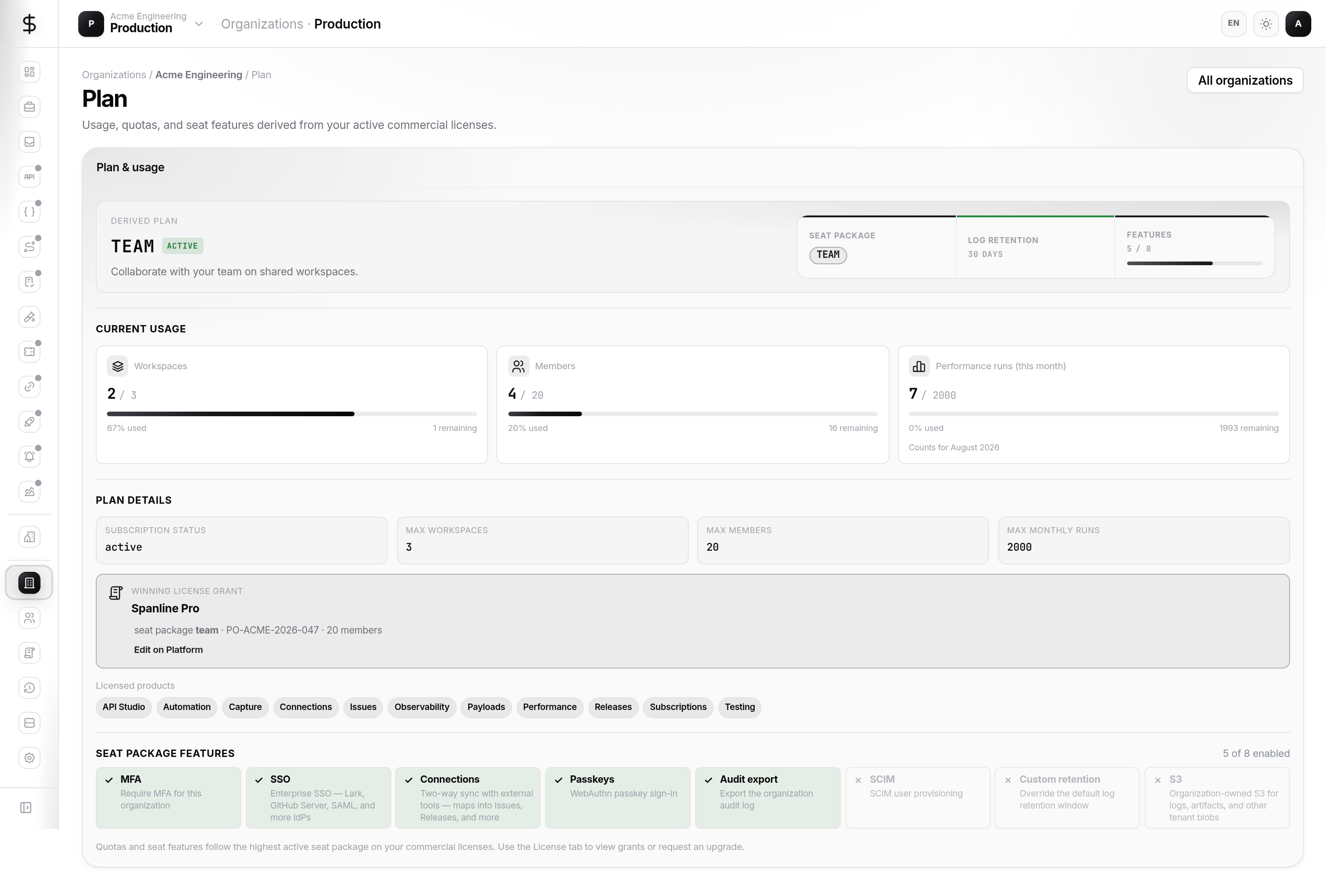
- Plan — seat counts, feature flags, quotas (members, workspaces, …)
Quota errors surface when creating members or workspaces — upgrade or request seats on Plan.
License {#license}
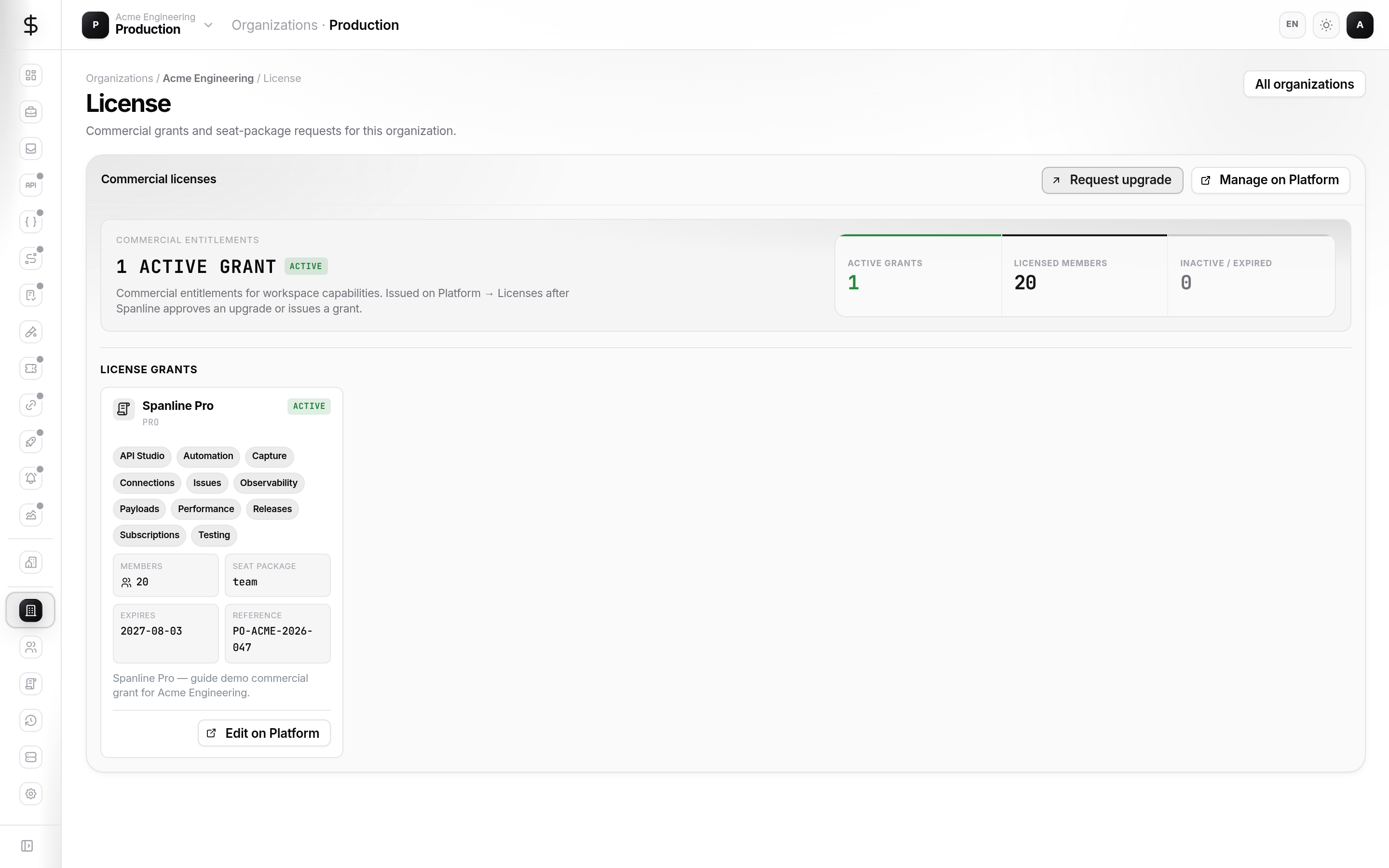
- License — view active commercial grants (pack, seat plan, members, expiry) and request upgrades when entitled
Org admins see grant cards for packs issued to the tenant. Platform operators manage grants under Platform → Licenses (not covered in this end-user guide).
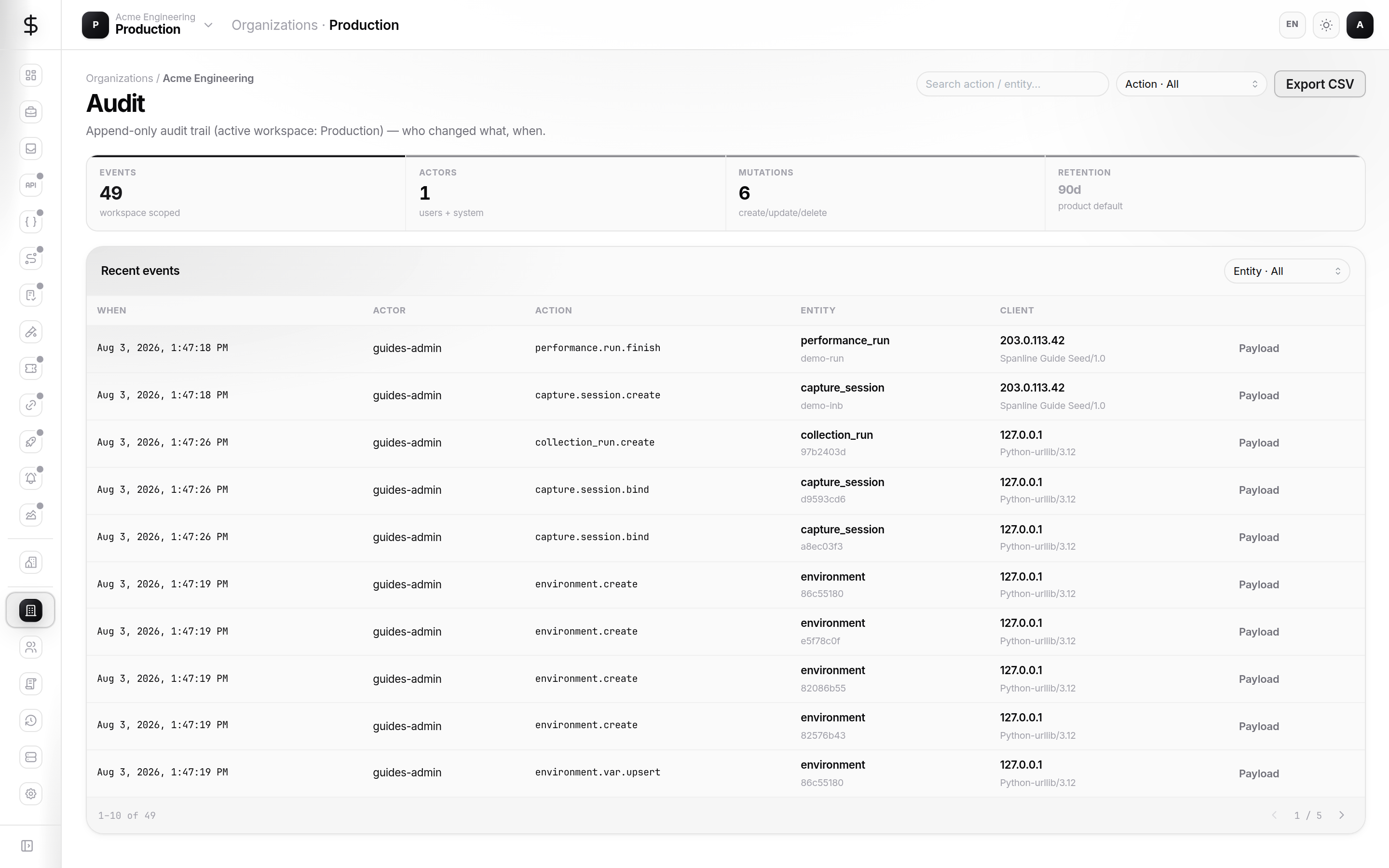
Audit {#audit}
Audit shows org-scoped events:
- Filter by action, entity, actor, time
- Export CSV for compliance (when entitled)
Workspace-scoped actions may include workspace id in metadata. Platform-only events stay in platform operator tools (not covered here).